
Normal view

There are new articles available, click to refresh the page.
Yesterday — 11 February 2026Main stream

2 Minutes Guide to Create your First Material in S4 HANA

Home » MM

In this post we will first check the configuration in details required for material master creation in S4 HANA. We will keep configuration minimum possible & use of SAP standard wherever possible.

1. Material Master related configuration

Below are the main configuration required to create material master

1.1 Material Type

Grouping of similar attribute materials . For example -Raw materials, Semi-finished products, or finished products.

Material type determines

  • If the material is intended for a specific purpose such as a configurable material or process material.
  • Material number is assigned internally or externally.
  • The number range of the material number.
  • Which screens appear and in what sequence
  • Procurement of the material -manufactured in-house or procured externally, or both

We will use below SAP standard material type

  • ERSA Spare Parts
  • FERT Finished Product
  • HALB Semifinished Product
  • HAWA Trading Goods
  • LEER Empties
  • LEIH Returnable packaging
  • ROH Raw materials
  • VERP Packaging
  • HAWA Trading Goods

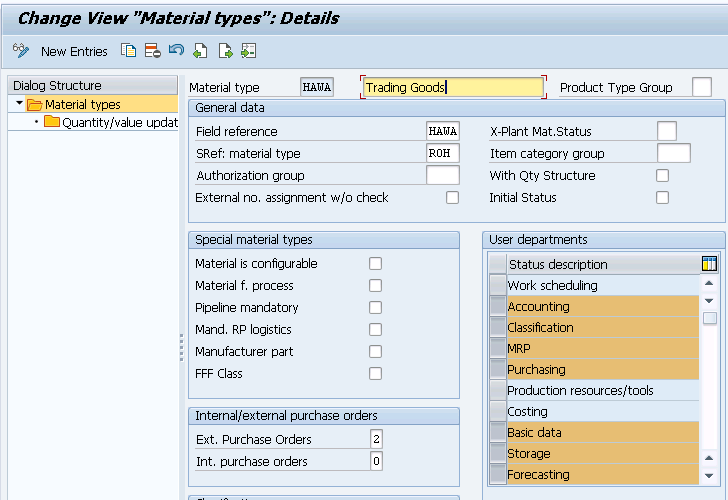
Below is the configuration for let,s say example – Trading Goods (HAWA)

Transaction code – OMS2

Picture : Material Type Configuration

Now click on “Quantity/value updating” & select “QTY Update” & ” Value Update” for your all material type in all your plants (Valuation Area)

So we have selected for our valuation areas PA10, PA20 & PP10

Picture : Qty/value update

1.2 Define Number Ranges for Each Material Type

Here we define the type of number assignment and the number range intervals for material master records. When creating a material master record it is must to assign it a unique number. There are two ways of doing this

1.2.1 Internal number assignment

In this case, a number within the number range interval allowed is assigned by the SAP system. Currently, the maximum length allowed for an internal number is 18.

1.2.2 External number assignment

Here, the user assigns a number within the number range interval allowed. You can define the intervals for external number assignment numerically and alphanumerically. For integration purposes, SAP, currently, allows only the number range length of 18 characters.

Transaction Type ; MMNR

Picture : Number Range Assignment to Material Type

Now let,s create our first material

2. Create your First material in S4 HANA

Here we will create different materials to be used for our car business

2.1 Creation of “Trading Material” -Mat Type “HAWA”

Time needed: 5 minutes

How to Create your first Material in SAP S4 HANA

  1. Go to MM01 and enter below on the Create Material (initial screen)

    Material Code – PA0101-01
    Material Type -HAWA
    Industry Sector – M Mechanical Engineering
    Press enter

  2. Select the views to be created (Presented from the material type config OMS2)
    Enter organization structure in which material is to be created

    Plant -PA10 (PPIC Chicago Plant)
    Sales Org -PA10 (IC Car Sales Organization)
    Distribution Channel – PA (Car Dealers)
    Press enter

    Material Creation-1

  3. On Sales : Sales Org. 2 view

    Enter General Item Category – NORM
    Enter Item Category Group – NORM
    Acct Assmt Grp Mat. – PA (Products)

    Material Master-4

    Gen Item Category for 3rd party subcon party : for third party subcontracting process, we use general item category as BADS


    Through this item category BADS , system determines Item category “RADS” for 3rd Party Subcontracting

    Item Category Determination for 3rd Party Subcontracting

  4. On “Basic Data 1” view

    Enter Description – “First PA01 Material for Car Dealership”
    Enter BUOM – PC
    Enter Division – SR (Spare Parts)
    Enter Material Group – PA10 (IC Car Parts Light)
    Gross Weight – 20 KG
    Net Weight – 18 KG

    Material Master-2

    Material “Packaging Level”

    1 “CARTON” of Material “66” = 6 “PC”
    1 “PALLET” of Material “66” = 8 “CARTON”
    1 “PALLET” of Material “66” = 48 “PC”

  5. On Sales : Sales Org. 1 view

    Enter Delivering Plant -PA10
    Enter Tax Classification -1 (Taxable)

    Tax1

  6. On Sales : General/Plant view

    Enter Availability Check -KP (No Check) – We will configure this and then activate this for another Material
    Enter Batch Management -Selected
    Enter Transportation Group – PA10 (Normal Transport)
    Enter Loading Group -PA10 (Manual Load)

    Material Master-5

  7. On MRP 2 view

    Enter “Storage loc. for EP” as -PP1A -Std. SLOC, This will be defaulted in PO and flows to the subsequent Inbound Delivery, which decides the goods receiving point for the deliveries.

    We assign goods receiving points to the inbound deliveries based on the plant and storage locations.

    Please check the below post for more information

    Optimize SAP LE Organization Structure: Best Practices & Configuration in 6 Steps – Assign Goods Receiving Points for Inbound Deliveries

    Please note that if we want this material to be handled in EWM, then we need to select a Storage location, connected with EWM warehouse in the field “Storage loc. for EP”.

    MM-6

  8. On MRP 4 view

    Click on “Production Versions” button under sub screen “BOM Explosion/ Dependent Requirements”

    Input production version here . It is required for BOM determination in subcon PO. Please see below post to see the details
    BOM

  9. On Plant Data / Stor. 1 view

    Enter Storage Condition as P1 (IM Managed stock) – Based on this we can configure different picking SLOC , based on if SLOC is IM managed, WM managed or EWM managed.

    MM-8

  10. On Accounting 1 View

    Enter Valuation Class as 3100 -Trading Goods.
    ML Active checkbox should be already selected and greyed out. If this is not selected then stop here and check ML activation through below given link to the corresponding post
    Enter price control “V” and price as 13 USD

    MM-9

  11. Save the material and you have created your first material successfully !

HINT

On Step 9 “ML Active” checkbox should be already selected and greyed out. If this is not selected then stop here and check ML activation through the link given below.

How to activate Material Ledger in S4HANA in 5 Easy Steps

2.2 Creation of “Packaging Materials” -Mat Type “VERP”

As per definition provided by SAP- “Packaging materials are intended to enclose or hold together the materials that are to be packed. In other words, the material that is to be packed can be packed into or onto the packaging material. The packaging material can be a load carrier. The most important packaging materials include crates, boxes, containers, wire baskets, and pallets”

Picture 13 : Different Type of Packaging Material (Courtesy SAP Help)

We will create two packaging material

  • Packaging Material CARTONSTD -CARTON WITH SSCC GENERATION
  • Packing Material PALLETSTD – PALLET WITH SSCC GENERATION

a) Packaging Material CARTONSTD -CARTON WITH SSCC GENERATION

TCode – MM01, Select Material type as “VERP” – Packaging Material

Picture 14 : Creation of Standard Carton Packaging Material

Packaging material type Standard Carton “SCAR” assigned to packaging material “CARTONSTD”

Picture 15 : Packaging Material type assignment to packaging material

b) Packaging Material PALLETSTD – PALLET WITH SSCC GENERATION

T-Code – MM01, Select Material type as “VERP” – Packaging Material

Picture 16 : Creation of Packaging material & assignment of Packaging Material Type

Note : Please see the below post to see the packaging material type “SCAR” & “SPAL” configuration in detail

Unlock SAP Efficiency: Master Handling Units Now! – Create the Packaging Materials

3. Extension of Material to Other Plants

There are business cases where we need to extend the materials to other plants.

3.1 Extension to intra-company Plant – Business Case

In order to work with stock transfer/stock transport order , it is mandatory to extend the material in both the plants. This means the material should be available in both receiving & sending plants

We need to extend our materials to our other plants in order to be able to do Stock Transfers & STOs

System will throw an error while transferring the stock or creating the STO , if the material is not extended to receiving plant

Picture: Stock Transfer Error

3.2 Extension to intra-company Plant

As per our organization structure We have two plants PA10 & PA20 assigned to PA10 company code as shown in below picture

Picture : Our Car Business Org. Structure

First we will extend our material to PA20 plant which is assigned to same company code (PA10) as PA10 plant

To extend the material Start MM01

  • Enter material as “66”
  • Enter “Copy from.. Material as “66”

Press Enter

System will copy Material type and industry sector from master record as shown in the below screenshot

Picture : Material Extensions

Select all the views

Picture ” Select All the Views

press enter and system will present source & destination organization levels as shown in the below screenshot

Fill the details as shown in the below screenshot

Picture : source & destination organization levels

Note : Sales Organization PA10 serves for both the plants PA10 & PA20.

Please click HERE for details of assignment of plant to sales organizations.

Press enter and system will automatically select extendable screens one by one.

You will be presented “Classification” screen.

Since we have not configuration yet so just come out from this screen by pressing the “Next Screen” button.

You will be presented the “Sales : sales org. 1” screen

Enter Delivering Plant “PA20-PPIC Boston Part”

Picture : Sales : sales org. 1 screen

Press enter and you will be presented “Sales : sales org. 2” screen

Picture : “Sales : sales org. 2” screen

We are not changing anything on the above screen so just press enter and system will present “Sales : General/Plant” screen

Picture : “Sales : General/Plant” screen

We are not changing anything on the above screen so just press enter and system will present “Intl Trade : Export” screen

Picture : “Intl Trade : Export” screen

We are not changing anything on the above screen so just press enter and system will present “Sales text” screen

Picture : “Sales text” screen

We are not changing anything on the above screen so click on “Purchasing” screen

Picture : “Purchasing” screen

We are not changing anything on the above screen so just press enter and system will present “Intl Trade : Import” screen.

Picture : “Intl Trade : Import” screen.

We are not changing anything on the above screen so just press enter and system will present “Purchase order text” screen

We are not changing anything on the “Purchase order text” screen, so click on “MRP 1” screen

Picture : “MRP 1” screen

We are not changing anything on the above screen so just press enter and system will present “MRP 2” screen

Picture : “MRP 2” screen

We are not changing anything on the above screen so just press enter and system will present “MRP 3” screen

Picture : “MRP 3” screen

We are not changing anything on the above screen so just press enter and system will present “MRP 4” screen

Picture : “MRP 4” screen
  • We are not changing anything on the above screen so just press enter and system will present “Advance Planning” screen .
  • We are not changing anything on the “Advance Planning” screen, so just press enter and system will present “Forecasting” screen

Enter Forecast Model as “N-No forecast/external model”

Picture : “Forecasting” screen

We are not changing anything on the above screen so just press enter and system will present “Plant data / Stor. 1” screen

Picture : “Plant data / Stor. 1” screen

We are not changing anything on the above screen so just press enter and system will present “Plant data / Stor. 2” screen

Picture : “Plant data / Stor. 2” screen

We are not changing anything on the above screen, so just press enter and system will present “Quality Management” screen

We are not changing anything on the “Quality Management” screen, so just press enter and system will present “Accounting 1” screen

Picture : “Accounting 1” screen
In the above screen Price is showing as 15.69 USD per price for this material in PA10 Plant
Let,s assume that this material costs 20 USD in PA20 plant due to cost of living difference , overheads etc.
Picture : Price update in plant “PA20”

After changing the price, press enter and system will present “Accounting 2” screen

We are not changing anything on the “Accounting 2” screen, so just press enter and system will ask to save.

Picture : Material Creation is about to complete

Material is now extended to PA20 Plant.

Picture : Material is now extended to PA20 Plant

3.3 Extension to inter-company Plant

We have two companies PA10 & PP10 with plant assignment shown as below

Picture : Our Car Business Organization Structure

Now we have extend our material to the PP10 plant which is assigned to the different company code PP10.

To extend the material Start MM01

  • Enter material as “66”
  • Enter “Copy from.. Material as “66”

Press Enter

System will copy Material type and industry sector from master record as shown in the below screenshot

Picture : Material Extensions to PP10 Plant

Enter source and destination organization structures

Picture : Source/Destination Org Structures

You will be presented the “Sales : sales org. 1” screen

Enter Delivering Plant “PP10- PPELC Fremont Pl”

Also Electrical plant is tax exempt so select Tax classification as “0-Exempt”

Picture : Sales : sales org. 1 screen

Press enter and you will be presented “Sales : sales org. 2” screen

We are not changing anything on the “Sales : sales org. 2” screen so just press enter and system will present “Sales : General/Plant” screen

Change loading group to “PP10-Manual Load”

Picture : “Sales : General/Plant” screen
  • –> We are not changing anything on the above screen so just press enter and system will present “Intl Trade : Export” screen.
  • –> We are not changing anything on the “Intl Trade : Export” screen so just press enter and system will present “Sales text” screen.
  • –> We are not changing anything on the “Sales text” screen so click on “Purchasing” scree.
  • –> We are not changing anything on the “Purchasing” screen so just press enter and system will present “Intl Trade : Import” screen.
  • –> We are not changing anything on the above screen so just press enter and system will present “Purchase order text” screen
  • –> We are not changing anything on the “Purchase order text” screen, so click on “MRP 1” screen
  • –> We are not changing anything on the MRP 1 screen so just press enter and system will present “MRP 2” screen
  • –> We are not changing anything on the MRP 2 screen so just press enter and system will present “MRP 3” screen
  • –> We are not changing anything on the above screen so just press enter and system will present “MRP 4” screen
  • –> We are not changing anything on the above screen so just press enter and system will present “Advance Planning” screen .
  • –> We are not changing anything on the “Advance Planning” screen, so just press enter and system will present “Forecasting” screen
  • –> We are not changing anything on the above screen so just press enter and system will present “Plant data / Stor. 1” screen.
  • –> We are not changing anything on the above screen so just press enter and system will present “Plant data / Stor. 2” screen.
  • –> We are not changing anything on the above screen, so just press enter and system will present “Quality Management” screen.
  • –> We are not changing anything on the “Quality Management” screen, so just press enter and system will present “Accounting 1” screen.
In the above screen Price is showing as 15.69 USD per price for this material in PA10 Plant
Let,s assume that this material costs 20 USD in PP10 plant due to cost of living difference , overheads etc.
Picture : Price update in plant “PP10”

After changing the price, press enter and system will present “Accounting 2” screen

We are not changing anything on the “Accounting 2” screen, so just press enter and system will ask to save.

Material is now extended to PP10 Plant.

Picture : Material is now extended to PP10 Plant

4. Creating the material for S4 HANA EWM

We have seen the material creation for the S4 or ECC part in the above sections of the post.

Now we will create the material to use in EWM. We will review the material creation for both S4 HANA embedded as well as decentralized EWM on S4 HANA options

We will first review the difference between creation of material in embedded & decentralized EWM

--> Please note that in order to be able to distribute the delivery to the EWM system, the material given in Purchase Order/Inbound Delivery should be created for a storage location which is connected to a EWM warehouse. Check the below posts for detail

--> Configure SAP S4 HANA Material Management Organization Structure in 5 Minutes-Create Storage Location

--> Configure SAP S4 HANA Logistics Execution Organization Structure in 5 Minutes-Assign Warehouse Number


--> Storage location in the Purchase Order & subsequent to Inbound delivery flows from the "Storage Location for EP" field of "MRP2" view of the material master. Please check the detail HERE

4.1 Material Creation Difference-Embedded Vs Decentralized EWM

Before understanding the difference, we need to understand that whenever we create the material, it is first created in SCM (i.e., APO stack)

We can display the material in “/SAPAPO/MAT1”. Here all fields are replicated from S4/EWM and get overwritten with update in S4/EWM

Now once material is present in SCM/APO, we can then extend (create) this material for our Warehouse. We use “/SCWM/MAT1” for this

--> Creating the material in SCM/APO is like creating the material globally in EWM instance (logically in case of Embedded EWM & Separate sever in case of decentralized EWM).

--> Second level is to create/extend this material in our Warehouse. It is mandatory to have the material in SCM/APO (step above) to be able to create material for our Warehouse.

4.1 Creating Material for Embedded S4 HANA EWM

As explained above we will first create the material in SCM/APO.

We will create material “Battery “

4.1.1 Material Creation in SCM/APO

We create the material first same as we create in S4/ECC normally.

This material creation is already explained in the step 2, so we have created this material offline.

Picture: Material Creation in ECC/S4

In case of Embedded EWM, as soon as we create this material in S4/ECC through MM01, it is available in SCM/APO

Run /SAPAPO/MAT1.

Input material number & choose “Global Data” radio button.

Picture: Material in SCM/APO..1
Picture: Material in SCM/APO….2

4.1.2 Material Creation in Warehouse

Since we have already fulfilled the prerequisite of material creation in warehouse (Material is present now in SCM/APO as shown in section 4.1.1), We can now create this material in our warehouse.

Run /SCWM/MAT1

Picture: Creation of Material in WH

Please check the below post for configuration of “Party Entitled to Dispose”

How to Integrate SAP EWM Warehouse in 7 Easy Steps

Give the required data in “warehouse data” & “ST. Type Data” view

Picture: WH Product Maintenance..1

input “Put away Control indicator” & “Removal Control Indicator”

Picture: WH Product Maintenance.…2

in “ST.Type Data”, input Storage type & storage section indicator

Picture: WH Product Maintenance….3

4.2 Creating Material for Decentralized EWM on S4 HANA.

To create the material in decentralized EWM, we use ALE/IDOC technique.

--> Since decentralized EWM is a separate server so there is a sender system (S4 HANA) and a receiver system (EWM) involved in Creation of a Material for Decentralized EWM on S4 HANA.

--> Please note that SAP ERP/S4 is always the sender system, and decentralized EWM. is always the receiver system.

4.2.1 Material Creation in SCM/APO

As explained material needs to be created first at global level in SCM/APO of the decentralized EWM server.

This is done through ALE/IDOC.

We will review here the full process of material creation.

Note: We will not explain the process of ALE set up as nothing special in it. It is just a general ALE set up which is used normally in SAP

4.2.1.1 Creating Reduced Message Types in ERP System

We will see the reduced message type MATMAS in detail in a separate post.

5. Creating the material for Specific Business Process

If there is a specific business process needs to be determined for a material (specially in outbound/inbound delivery), then this is decided through field “Gen. item cat. grp” on “Sales: sales org 2” view of the material.

5.1 General Purpose Material

For a normal business process. the value of this field is given as “NORM” as used in the above section of the post.

Picture: “Gen Item Cat.grp” of General-purpose material

5.2 Specific Purpose Material

When there is a special business process to be used, the value of the field “Gen. item cat. grp” is different.

For example

--> Some Example of "Gen. item cat. grp" value for specific business process

       NLAG --> "Non-stock material"
       ERLA -->	Structure/Mat. Above
       ERLB --> Structure/Mat. Above
       LEER -->	Empties
       LEIH	--> Returnable Packaging
       VERP--> Packaging

5.2.1 “Gen. item cat. grp” for Spare Parts Specific Business Purpose

We have used general item category for our material 700007106 which is specifically created as spare part for spare part specific purpose.

We used “YSPR” for this field for the spare parts

Picture: Gen. item cat. grp YSPR for spare parts material
--> The above field is used to To determine different line item category "YSPR" for the spare parts materials from the the standard line item category "YELN", we have to input different "item category" in the material master of spare parts materials. Please check the below link to see this in detail

Configure SAP S4 HANA Sales Documents in 10 Minutes-Item Category Determination in Special Process Inbound Delivery

5.2.2 “Gen. item cat. grp” for Third Party Sales

We use Item category Group as “BANS” for the third party sales process. The rest of the material creation process will same as HAWA as given HERE

Picture: Material Creation for Third Party Sales

5.2.3 “Gen. item cat. grp” for Third Party Individual PO

We use Item category Group as “BANC” for the third party sales process. The rest of the material creation process will same as HAWA

Picture: “Gen. item cat. grp” for Third Part Individual PO

5.2.4 “Gen. item cat. grp” for Third Party Subcontracting

We use Item category Group as “BADS” for the third party sales process. The rest of the material creation process will same as HAWA

Picture: Gen. item cat. grp” for Third Party Subcontracting

6. Creation of Finished Goods for Production Order (FERT)

Here we will create a finished good material to use in our production order

Step 1

Go to MM01 and enter below on the Create Material (initial screen)

  • Material Code – “Internally Generated”
  • Material Type -FERT
  • Industry Sector – M Mechanical Engineering

Press Enter

Step 2

Select the views to be created (Presented from the material type config OMS2). Enter organization structure in which material is to be created

  • Plant -PA10 (PPIC Chicago Plant)
  • Sales Org -PA10 (IC Car Sales Organization)
  • Distribution Channel – PA (Car Dealer

Press Enter

Step 3

On “Basic Data 1” view

  • Enter Description – “Finished Car Model D
  • Enter BUOM – EA
  • Enter Division – PC (Petrol Car)
  • Enter Material Group – PA10 (IC Car Parts Light)
  • Gross Weight – 2000 KG
  • Net Weight – 1900 KG

Step 4

On Sales : Sales Org. 1 view

  • Enter Delivering Plant -PA10
  • Enter Tax Classification -1 (Taxable)

Step 5

On Sales : Sales Org. 2 view

  • Enter General Item Category – NORM
  • Enter Item Category Group – NORM
  • Acct Assmt Grp Mat. – PA (Products)

Step 6

On Sales : General/Plant view

  • Enter Availability Check -KP (No Check)
  • Enter Batch Management -Selected
  • Enter Batch management(Plant) – Selected
  • Enter Transportation Group – PA10 (Normal Transport)
  • Enter Loading Group -PA10 (Manual Load)

Step 7

On MRP 2 view

  • Enter “Prod. Stor. location -PP1B (This will be the production supply SLOC from where material for production will be supplied)
  • Enter “Storage loc. for EP” as -PP1A -Std. SLOC, (This will be defaulted in PO and flows to the subsequent Inbound Delivery).

    Please note that if we want this material to be handled in EWM, then we need to select a Storage location, connected with EWM warehouse in the field “Storage loc. for EP”.

Step 8

On Plant Data / Stor. 1 view

Enter Storage Condition as P1 (IM Managed stock) – Based on this we can configure different picking SLOC , based on if SLOC is IM managed, WM managed or EWM

Step 9

Accounting 1 View

  • Enter Valuation Class as 7920 -Finished Products
  • ML Active checkbox – should be already selected and greyed out. (If this is not selected then stop here and check ML activation through below given link to the corresponding post).
  • Enter price control “V”/”S” and price as 50000 USD.

7. Creation of SFG for Production Order (HALB)

Here we will create a semi-finished good (Assembly) material to use in our production order

Step 1

Go to MM01 and enter below on the Create Material (initial screen)

  • Material Code – “Internally Generated”
  • Material Type -HALB
  • Industry Sector – M Mechanical Engineering

Press Enter

Step 2

Select the views to be created (Presented from the material type config OMS2). Enter organization structure in which material is to be created

  • Plant -PA10 (PPIC Chicago Plant)
  • Sales Org -PA10 (IC Car Sales Organization)
  • Distribution Channel – PA (Car Dealer

Press Enter

Step 3

On “Basic Data 1” view

  • Enter Description – “Chassis Model D
  • Enter BUOM – EA
  • Enter Division – PC (Petrol Car)
  • Enter Material Group – PA10 (IC Car Parts Light)
  • Gross Weight – 600 KG
  • Net Weight – 550 KG

Step 4

On Sales : Sales Org. 1 view

  • Enter Delivering Plant -PA10
  • Enter Tax Classification -0 (Exempt)

Step 5

On Sales : Sales Org. 2 view

  • Enter General Item Category – NORM
  • Enter Item Category Group – NORM
  • Acct Assmt Grp Mat. – PA (Products)

Step 6

On Sales : General/Plant view

  • Enter Availability Check -KP (No Check)
  • Enter Batch Management -Selected
  • Enter Batch management(Plant) – Selected
  • Enter Transportation Group – PA10 (Normal Transport)
  • Enter Loading Group -PA10 (Manual Load)

Step 7

On MRP 2 view

  • Enter “Prod. Stor. location -PP1B (This will be the production supply SLOC from where material for production will be supplied)
  • Enter “Storage loc. for EP” as -PP1A -Std. SLOC, (This will be defaulted in PO and flows to the subsequent Inbound Delivery).

    Please note that if we want this material to be handled in EWM, then we need to select a Storage location, connected with EWM warehouse in the field “Storage loc. for EP”.

Step 8

On Plant Data / Stor. 1 view

Enter Storage Condition as P1 (IM Managed stock) – Based on this we can configure different picking SLOC , based on if SLOC is IM managed, WM managed or EWM

Step 9

Accounting 1 View

  • Enter Valuation Class as 7900 -Semi finished products
  • ML Active checkbox – should be already selected and greyed out. (If this is not selected then stop here and check ML activation through below given link to the corresponding post).
  • Enter price control “V”/”S” and price as 9999 USD.

8. Creation of Raw Material for Production Order (ROH)

Here we will create a RAW material (Component) to use in our production order

Step 1

Go to MM01 and enter below on the Create Material (initial screen)

  • Material Code – “Internally Generated”
  • Material Type -ROH
  • Industry Sector – M Mechanical Engineering

Press Enter

Step 2

Select the views to be created (Presented from the material type config OMS2). Enter organization structure in which material is to be created

  • Plant -PA10 (PPIC Chicago Plant)
  • Sales Org -PA10 (IC Car Sales Organization)
  • Distribution Channel – PA (Car Dealer

Press Enter

Step 3

On “Basic Data 1” view

  • Enter Description – “Tail Lights
  • Enter BUOM – KG
  • Enter Division – PC (Petrol Car)
  • Enter Material Group – PA10 (IC Car Parts Light)
  • Gross Weight – 5 KG
  • Net Weight – 4 KG

Step 4

On Sales : Sales Org. 1 view

  • Enter Delivering Plant -PA10
  • Enter Tax Classification -1 (Taxable)

Step 5

On Sales : Sales Org. 2 view

  • Enter General Item Category – NORM
  • Enter Item Category Group – NORM
  • Acct Assmt Grp Mat. – PA (Products)

Step 6

On Sales : General/Plant view

  • Enter Availability Check -KP (No Check)
  • Enter Batch Management -Selected
  • Enter Batch management(Plant) – Selected
  • Enter Transportation Group – PA10 (Normal Transport)
  • Enter Loading Group -PA10 (Manual Load)

Step 7

On MRP 2 view

  • Enter “Prod. Stor. location -PP1B (This will be the production supply SLOC from where material for production will be supplied)
  • Enter “Storage loc. for EP” as -PP1A -Std. SLOC, (This will be defaulted in PO and flows to the subsequent Inbound Delivery).

    Please note that if we want this material to be handled in EWM, then we need to select a Storage location, connected with EWM warehouse in the field “Storage loc. for EP”.

Step 8

On Plant Data / Stor. 1 view

Enter Storage Condition as P1 (IM Managed stock) – Based on this we can configure different picking SLOC , based on if SLOC is IM managed, WM managed or EWM

Step 9

Accounting 1 View

  • Enter Valuation Class as 3000 -RAW Products
  • ML Active checkbox – should be already selected and greyed out. (If this is not selected then stop here and check ML activation through below given link to the corresponding post).
  • Enter price control “V”/”S” and price as 50 USD.

Note:

Please see below post to check how the FG, SFG & Raw Material created above are used in the BOM and subsequently in the production order

How to Configure Base PP Cycle in 5 Minutes

We have created the below FG, SFG & Raw materials

Assembly (Semi Finished)-Chassis Model D (Material 500000023)

  1. Component-Tail Lights (Material-500000007)
  2. Component-Boot Insulation (Material-500000008)

Assembly (Semi Finished)-Car Boot Model D (Material 500000021)

  1. Assembly (Semi Finished)-Chassis Model D (Material-500000023)
  2. Component-Rear Tires (Material no.-500000018)

Finished Product (Car model D, Material-500000027)

  1. Component-Electric Wires (Material-500000019)
  2. Assembly (Semi Finished)-Car Boot Model D (Material-500000021)
  3. Component-Petrol (Material-500000026)
  4. Component-Engine Assembled (Material-500000009)

Now we will activate QM view for the component Tail lights.

9. Creation of QM view for QM-MM Interface

Since component Tail Lights (Material-500000007) is purchased from the vendor so we need to inspect it at the time of goods receipt

We need to assign inspection type “01” in material master QM view

Go to MM01 and enter material 500000007, select QM view and input plant PA10

Picture: QM view Creation for inspection Type “01”

As soon as we select the inspection type “01” in QM view of material master, the fields selected in the configuration will be activated by default

Please see the below post for detail

How to Configure & Test QM in Procurement-Define Default Values for Inspection Type

9.2 QM In Procurement Active Checkbox

If we set this indicator then “QM in procurement” is activated for all the plants pertaining to a client.

--> If we activate QM in procurement indicator in the material master record (Which is at the client level), we must also input "Quality Procurement Key" at the plant level for quality management in procurement.

9.2 QM Control Key

This key determines all the conditions which are valid for quality management in procurement.

To configure the QM procurement key , follow the below path

SPRO –> Quality Management –> QM in Logistics –> QM in Procurement –> Define Control Keys for QM in Procurement

We have configured the below key for our materials

Picture: QM Control Key Configuration

In the previous post, we have activated Material Ledger in 5 Easy Steps. Click on the above link to read in detail.

In the next Post we will load GL master. GL accounts will be required to create/configure further process like BP, MM-FI Integration etc. Click on the above link to read in detail.

The post 2 Minutes Guide to Create your First Material in S4 HANA appeared first on Ultimate SAP Guides | S4 HANA Logistics Modules.

Master SAP S/4HANA: 5 Essential Steps to Activate Material Ledger and Boost Financial Accuracy

Home » MM

In the world of SAP S/4HANA, the Material Ledger (ML) is no longer a luxury or an optional sub-module—it is a mandatory requirement for material valuation. While the “mandatory” label often causes concern for logistics and finance teams, activating ML doesn’t have to be a technical nightmare. When executed correctly, the Material Ledger serves as the backbone for multi-currency functionality and real-time inventory valuation across different accounting standards (like IFRS or Local GAAP).

The following guide provides a strategic roadmap to move your valuation areas from a “Red” status to a “Green” productive state, ensuring your financial data is accurate and compliant.

5 Easy Steps to Material Ledger Activation

Step 1: Assign Currency Types to Material Ledger Type (T-Code: OMX2)

To record inventory values across legal, group, and profit center valuations, you must configure the currency types associated with your Material Ledger. This allows for multi-currency reporting and valuation views that are critical for global enterprises

Picture: Multiple Currencies in Material Ledger
--> We have to configure & activate Material Ledger as it is mandatory in SAP s4 HANA

--> We want to configure & activate material Ledger with minimum possible configuration

--> So we will activate our Material Ledger with only 1 currency "Company Code currency" to keep it simple

Please follow the below path for this configuration.

Picture : Path to Assign Currency Types to Material Ledger Type
Picture: ML Type & Assigned currencies

Senior Consultant’s Tip: For your initial S/4HANA activation, using Material Ledger Type “9000” with only “Company Code currency” (10) is a Best Practice for Lean Implementations. This setup minimizes complexity by generating only one view in the material master, which is often sufficient for mid-sized organizations or those not yet utilizing complex parallel valuation.

Select material ledger type “9000” and click on “Define individual characteristics”

Picture: Currency Assigned to the ML type “9000”

Step 2: Assign Material Ledger Type to Valuation Area (T-Code: OMX3)

This step acts as the mapping phase, where you tell the SAP system which specific plants (valuation areas) will track material costs under the rules defined in Step 1.

In this configuration, assign Material Ledger type “9000” to your valuation areas (e.g., PA10, PA20, and PP10).

Important Warning: After this assignment, you will notice the valuation area status is Red. Do not be alarmed; this is the expected status. It will remain red until you complete the Production Start-up in Step 4.

Please follow the below path for this configuration.

Picture : Path to Assign Material Ledger Type 9000 to Valuation Area

and assign our chosen material ledger type “9000” to all our valuation areas (PA10, PA20 & PP10)

Picture : Assign our chosen Material Ledger Type 9000 to our Valuation Areas

Step 3: Activate Valuation Areas for Material Ledger (T-Code: OMX1)

Transaction OMX1 is the “On Switch” for the Material Ledger in your plants. Beyond just turning it on, this is where you define how the system determines material prices.

You must choose between two Price Determination levels:

1. Transaction-Based (2): Materials are valued at either moving average price (V) or standard price (S). Moving average price is calculated only for informational purposes.

2. Single/Multi-level (3): This is the prerequisite for Actual Costing. It calculates a periodic unit price for closed periods. Single-level rolls variances into ending inventory, while Multi-level rolls variances from lower-level components (Raw Materials) up to higher-level products (Finished Goods).

Strategic Directive: For your initial S/4HANA activation, I recommend Option 2 (Transaction-Based) to maintain a streamlined logistics profile. However, if your finance team requires the elimination of manual month-end variance allocations and needs true Actual Costing, Option 3 is the standard choice.

Please follow the below path for this configuration.

Picture : Path to Activate Valuation Areas for Material Ledger

Select “ML Act.” check box and Price determination level as option 2 “Transaction-Based Price Determination”

Picture : Activate Valuation Areas for Material Ledger

Note

The value of price determination flows from this config to the material master as shown in the below screenshot.

Picture: Price Determination values from config to the Material Master

Step 4: Production Start-up of Material Ledger (T-Code: CKMSTART)

This is the final execution step. Running CKMSTART converts your valuation areas into a productive state, allowing SAP to begin recording actual costs, multi-currency values, and parallel accounting.

Once you execute this for a specific plant (such as PA10), the system will trigger the “Plant is now productive” indicator. It is only at this point that the status in transaction OMX3 will finally turn from Red to Green.

Lets first activate this for our PA10 valuation Area (Plant)

Picture : Production Start-up of Material Ledger for Valuation Area PA10

All green log informing PA10 is now productive with Material Ledger.

Picture : Successful Production Start up of Material Ledger for Valuation Area PA10

Valuation area PA20 & PP10 is made productive with ML through similar way

Step 5: Troubleshooting Common Activation Errors

Technical hurdles are common during ML activation. Here is how to resolve the most frequent errors encountered in the field:

Error 1 -Company Code is not set up for Material Management (M3152)

When we tried PP10 to make productive with ML, below error message is encountered

Picture : Error M3152


To resolve this error , We need to set-up Company code PP10 for Material Management through T-code OMSY

Picture : OMSY for PP10 Company Code to Resolve Error M3152


Now PP10 is initiated for MM periods from the current month .

Please note we need to open posting period starting of every month through MMPV. This step was already done for PA10 company code hence no error for Plants PA10 & PA20

Now re-try to make PP10 plant productive with ML

PP10 plant is Successfully productive now

Picture : Successful Production Start up of Material Ledger for Valuation Area PP10

Error 2 -Material Ledger Currencies were changed (C+039)

How to resolve error C+039 ‘Material ledger currencies were changed’

To resolve this error run the transaction code CKM9 and check Company Code/Controlling area currency as per screenshot given below

Picture : Checking of Currencies

This currency should be aligned with the currency in SCC4

Note : For Example

Company Code Currency : USD

Currency in SCC4 : EUR

in this case in OKKP, select group currency 30 and currency as EUR

Please note that these currencies selection should not be changed after ML activation (CKMSTART). If changed then Error Material Ledger Currencies were changed (C+039) will come. if this happens then revert to the original currencies selection after deactivation of ML>

Error 3- ML Active checkbox is not selected in Material Master Accounting View.

  • To resolve this first deactivate the ML through running report SAPRCKMJX in SE38
  • Now go to OMS2, select your material type and click on “Quantity/value updating”
  • Now select the “Quantity updating” & “value updating” check box for your valuation area (plant) & save.
  • Now Set the Plant production for ML again through t-code CKMSTART
  • Check in MM03- ML active checkbox should be now selected.

Error 4- ML currencies are not integrated in FI for valuation area (Error FML_CUST033)

To resolve the error we will follow 3-Part Remedial Sequence

Phase 1 (Controlling Area Setup): 

To resolve this error, Configure the controlling area as given below for our Co-Area PPIN and linked it to Company codes. Please note that currencies should be aligned for material ledger & Controlling area

Picture : Configuration of PPIN Controlling Area
Phase 2 (Component Activation)

In SPRO (Maintain Controlling Area), ensure “CCtr Std. Hierarchy” is created. Set all components to “Not Active” to maintain a lean logistics scenario.

SPRO –> Controlling –> General Controlling –> Organization –> Maintain Controlling Area

Picture : Maintain Controlling Area

“CCtr Std.Hierarchy” is mandatory. Just give name as “PPIN” and save.

System will prompt for creation of “PPIN” “CCtr Std.Hierarchy”. Click on “yes”

Picture : Prompt for creation of “PPIN” “CCtr Std.Hierarchy”

Click on “Activate components/control indicators”

Picture : Activate components/control indicators

Since our focus is not on controlling right now so choose all components as not active to have minimum restrictions/work in our logistics scenarios.

Picture : Choose Components as “Not Active”

We have already assigned our company codes “PA10” & “PA20” to our controlling area “PPIN”

Now run the CKMSTART again for our valuation area and Error FML_CUST033 -ML currencies are not integrated in FI for valuation area should not come.

if you are still getting this error then we need to configure the company code currency

Phase 3 (Ledger Integration)

Use transaction SB22 to check for the presence of your company code. If missing, navigate to FINSC_LEDGER, select Ledger “0L,” and ensure the company code settings are fully maintained.

Check the presence of your company code in transaction SB22

Picture : Check your Company Code Presence.

If your company code is not present then run T-code “FINSC_LEDGER”

Select line with ledger “0L” and click on “Company code Settings for the Ledger”

Picture : Company code Settings for the Ledger-1

Insert your company codes

Picture : Company code Settings for the Ledger-2

Now this error will be 100% resolved.

Error 5- Error C+380 with CKMSTART

The error message C+380 happens if the plant has an inconsistent entry in table T001W.

Cause: Inconsistency in plant/valuation area assignment.

Resolution: Use T-Code OX18 to delete the plant-to-company code assignment, save, and then re-assign the plant.

Expert FAQ: High-Value Technical Queries

Is SAP S/4HANA Material Ledger mandatory?

Yes. In SAP S/4HANA Finance, the Material Ledger is the mandatory engine for all material valuations. You cannot perform inventory management without it.

What is the difference between Transaction-based and Multi-level price determination? 

Transaction-based (Option 2) values materials at standard or moving average prices for day-to-day operations. Multi-level (Option 3) is used for Actual Costing, which calculates the Periodic Unit Price by rolling variances from raw materials to finished goods at month-end.

How do I fix the ‘Plant is not productive’ error in SAP S/4HANA Material Ledger?

This error occurs when Step 4 has not been completed. You must run transaction CKMSTART for the valuation area to set the productive indicator and move the status from Red to Green.

Video Tutorial

To get the most value from this topic, we recommend reading this full blog post along with watching the embedded YouTube video below.

The post provides structured insights and practical examples, while the video offers a visual walkthrough to reinforce key concepts. Together, they deliver a complete learning experience for SAP professionals.

Video: How to Activate SAP S/4HANA Material Ledger in 5 Steps + Common Error Resolutions

Conclusion

Transitioning your valuation areas from Red to Green is more than just a configuration checkbox—it is a significant milestone for inventory transparency and financial accuracy. By following these five steps, you ensure that your S/4HANA system is architected for multi-currency reporting and advanced valuation requirements.

Are you ready to move beyond basic activation? Now that your Material Ledger is active, you can leverage Actual Costing for deep profitability analysis. To eliminate manual entry errors and speed up your deployment, I highly recommend using the Configuration Accelerator Workbooks for Efficiency

Note

Check Post FI Organization Structure in 5 Minutes to familiarize yourself with S4 HANA FI Organization Structure

Check Post SD Organization Structure in 5 Minutes to familiarize yourself with S4 HANA SD Organization Structure

Check Post MM Organization Structure in 5 Minutes to familiarize yourself with S4 HANA MM Organization Structure

The prerequisites to Material Ledger activation are successful configuration of minimum required FI, SD & MM organization structure. Click on the above link to read in detail.

We have completed Minimum Required organization Structure & activated Material Ledger (Mandatory for S4 HANA). Now we can configure and create our first material. Click on the above link for more detail.


Image Courtesy : Education vector created by freepik – www.freepik.com

The post Master SAP S/4HANA: 5 Essential Steps to Activate Material Ledger and Boost Financial Accuracy appeared first on Ultimate SAP Guides | S4 HANA Logistics Modules.

Before yesterdayMain stream

Ultimate guide to SAP S4 HANA MM Pricing Procedure

Home » MM


In this post we will configure all aspects of SAP S4 HANA MM Pricing Procedure. Before starting S4 HANA MM pricing procedure , we will have a look at the pre-requisite configuration, which is required before configuring Pricing Procedure in SAP S4 HANA

1. Pre-Requisite Configurations

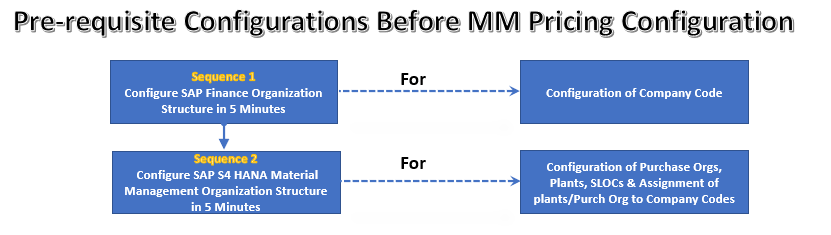
Below diagram is showing the configuration (& related posts) required to complete before starting configuration of S4 HANA pricing procedure.

Picture : Pre-requisite Configurations Before MM Pricing Configuration

Link to each post is given below

Once we have completed all the above configurations, we are ready to configure MM Pricing Procedure.

2. Understanding of SAP S4 HANA MM Pricing Procedure

SAP S4 HANA MM Pricing Procedure can be Bifurcated in Two Parts

2.1 Technique behind S4 HANA MM Pricing Procedure (Condition Technique)

To understand SAP S4 HANA MM Pricing Procedure, We need to first have an overview of the working of the pricing conditions in the MM. To understand this we need to understand condition technique. Pricing is broadly used to describe the calculation of price & costs. During Purchase Order processing, the system uses the condition technique to determine automatically the various cost components like discounts, surcharges, freight etc.

2.2 Determination of Pricing Procedure

Let’s start with technique behind working of pricing procedure

3. Condition Technique in S4 HANA MM Pricing Procedure

Condition technique involves the following below elements in sequence.

  • Condition Types
  • Access Sequences
  • Condition Tables
  • Calculation Schemas

Let,s review all the four elements of condition technique one by one

4. Condition Type

In SAP S4 HANA MM Pricing Procedure, the first step in defining pricing is configuration of condition types.

We create different type of condition types representing discounts, surcharges, freight, cost, taxes etc. to complete our pricing schema.

Let’s review the configuration of condition type and all the fields associated with it.

Picture : Condition Type Configuration ..First Part
Picture : Condition Type Configuration ..Second Part
Picture : Condition Type Configuration ..Third Part
Picture : Condition Type Configuration ..Fourth Part

4.1 Fields in “Control Data 1” Section of Condition Type Configuration

Below fields are available in control data 1 section of condition type configuration

Picture : Fields in “Control Data 1” Section of Condition Type Configuration

4.1.1 Condition Class

This field determines the category of condition type like : Price, Tax. Discount or surcharge etc.

The most common classes are as follows

4.1.1.1 Condition Class “B”

If a condition type is being configured for gross pricing then condition class “B” will be used.

4.1.1.2 Condition Class “A”

If a condition type is being configured for Quantity or weight discount then condition class “A” will be used.

4.1.1.3 Condition Class “D”

If a condition type is being configured for taxes then condition class “D” will be used.

4.1.2 Calculation Type

This field determines how the condition type will be calculated.

The most common used calculation types are

“B”-For Fixed Amount,

“A”-For percentage

“C”-For quantity

“G” for our own formula

if we use calculation type “G” in a pricing procedures, a condition basis formula and a condition value formula must be assigned to this calculation type.

Note : The formula define here (in MM pricing procedure) works the same way in SD. We use VOFM for the same.

4.1.3 Condition Category

Condition Category is the classification of condition types such as FREIGHT, TAX, PRICE, DISCOUNT.

The condition categories are always hardcoded.

4.1.3.1 Condition Category “F -Freight” vs “B -Delivery costs”

If the vendor is same for Main Purchase Order & Freight then we can select the F category

But if the transportation vendor is different then the Purchase order vendor then we need to select the “B” delivery cost condition category

With condition category “B – Delivery Cost”, we will have the option of entering delivery vendor (other than main vendor) for that condition type in PO and also option of posting this cost to different G/L account based on account key setting in Accrual column in MM pricing procedure and G/L account assignment in OBYC for that account key.

Hint

Condition types are differentiated broadly using the condition class and more definitively using the condition category.

4.1.4 Rounding Rule

Rounding rule determines the rounding up value of the condition type. If the value is set up as “Commercial” then value is rounded off, for example $9.364 round off to $9.36

4.1.5 Plus/Minus Value

This configuration determines if condition type value is treated as positive value or negative value.

Negative values are discounts and positive values are surcharges.

Note : A blank value represents a positive.

4.2 Fields in “Group Condition” Section of Condition Type Configuration

Below three fields are present in this section of condition type configuration

Picture : Fields in “Group Condition” Section of Condition Type Configuration

4.2.1 Group Condition

if this field is checked , then such condition type is determined based on the cumulative value of the line item. for a group condition, all the values of the relevant items (price, order quantities etc) are added and then total is used as condition bases.

For example : a PO has several line items . There is a discount group condition in our PO which gives 10% discount if PO value is exceeds by 1000$ for a particular material group items. in this case if total value of this material distributed in several line item is calculated and compared against 100$ in order to arrive on discount decision, though individually such PO line item may not qualify for discount being less than $1000 order value.

4.2.2 Rounding Difference Comparison

if this field is checked then system compares the total of line items condition values to the condition value at the header level and difference is added to the largest item.

4.2.3 Group Condition Routine

This is used to calculate any alternative value as base to determine the scale value. For example – Group condition base can be a total of all line items weight which belongs to a particular material groups.

4.3 Fields in “Changes which can be made” Section of Condition Type Configuration

Below fields are given in this section of condition type configuration. Let’s review all the fields one by one

Picture : Fields in “Changes which can be made” Section of Condition Type Configuration

4.3.1 Manual Entries

This fields controls the priority of a condition type between manual entries and determined automatically .

Options available are “No Limitations”, or “Automatic entry has priority” which means cannot be entered manually, or “Manual Entry has priority” which means if entered manually, system does not check if a condition record exists and final option “Can not be processed manually”.

4.3.2 Header Condition/Item Condition

The selection of these checkbox determines if the condition type is a header condition type or item condition type.

4.3.3 Delete

This specifies if deletion of this condition type is allowed from the documents

4.3.4 Value

This field controls whether the value can be overwritten on the sales/purchase documents

4.3.5 Calculation Type

This field controls whether we can change the calculation type while processing the document

4.3.6 Amount/Percentage

Controls whether amount or percentage can be changed during document processing.

4.3.7 Quantity Relation

This field controls if conversion factor for the unit of measure of this condition type can be changed during document processing.

4.4 Fields in “Master Data” Section of Condition Type Configuration


This section has below fields.

Picture : Fields in “Master Data” Section of Condition Type Configuration

4.4.1 Ref. Condition Type, Ref. Application & Pricing Procedure

A pricing condition type sometimes can have a reference to another pricing condition type. We will understand the use of all the above fields through a real scenario

Our requirement is that a pricing condition should flow from PO to Billing for a STO.

In Billing Type, the Pricing Procedure will be SD Pricing Procedure with normal Price Determination settings. But we will not maintain condition Records (through VK11) but we will set Reference Condition , Reference application & reference pricing procedure while configuring this Condition Type (V/06) under “Master Data” Section of Condition Type Configuration as shown in above screenshot.

Now System will access the Condition Record of the Referred Condition Type & reference Application (M – Purchasing).

The other example is a requirement that the Freight paid to Shipment Vendor should be exactly same as one charged to Customer in Sales Order / Invoice. Thus we will use Reference Condition to fulfil this requirement.

4.4.2 Condition Index

This field controls if condition index will be updated or not. we can select this for faster searches.

4.5 Fields in “Scales” Section of Condition Type Configuration

This section of the condition type configuration has several scales related fields. We will review all the fields here.

Picture : Fields in “Scales” Section of Condition Type Configuration

4.5.1 Scale Basis

if no scale type is entered (if this field is blank then it means Scale “Can be maintained in condition record”), then we can specify scale related to money value (scale basis B) or qty (scale basis C) or a weight (Scale basis D or E).

4.5.2 Check Value

This field controls if the scale can be maintained in ascending or descending order.

4.5.3 Scale Type (with Real time examples)

The possible values for scale type are

Blank-Can be maintained in condition records

4.5.3.1 A : Base Scale

Example of Scale type A

From 1 Unit Price is $10

From 11 units price is $9

From 21 price is $8

So if we create a PO for 30 unit then per unit price would be at a discount of $8

4.5.3.2 B : To Scale

Example of Scale type B

Up to 10 Unit Price is $10

Up to 20 units price is $9

Up to 30 unit price is $8

So if we create a PO for 30 unit then per unit price would be at a discount of $8

C : Not Used

4.5.3.3 D : Graduated Scale

in normal scales , system determines one price. while in graduated scale, multiple prices are possible in the pricing screen of an individual item.

Example of a graduated scale

From 1 unit to 10 Unit Price is $10

From 11 to 20 units price is $9

From 21 to 30 unit price is $8

So if we create a PO for 30 unit then first 10 units will be$100, next 10 units will be $90 and the last 10 units will be $80 so PO value will be $270.

4.5.3.4 Scale Routine

if standard scale bases are not sufficient then we can write our own formula to determine alternate scale basis value. Scale formulas are created through VOFM.

4.5.3.5 Scale Unit (Unit of Measure)

This unit of measure is used for group conditions that are weight or volume dependent.

4.6 Fields in “Control Data 2” Section of Condition Type Configuration

There are several important fields in “Control Data 2” Section of Condition Type Configuration. Let’s review them

Picture : Fields in “Control Data 2” Section of Condition Type Configuration

4.6.1 Currency Conversion

If we select this indicator then currency conversion happens after the multiplications of the quantity.

Example – Our company is purchasing some components from abroad, main PO is in INR but freight is in USD so to avoid rounding errors, freight condition type will have this indicator checked so that freight is calculated after the quantity is multiplied.

4.6.2 Promotion Condition

Specifies that the condition type is valid only for promotions. Conditions for which this indicator has been set can only be maintained via the ‘Promotion’ menu – not via the Purchasing menu.

4.6.3 Accruals

This field controls if Condition is Relevant for Accrual (e.g. Freight)

Indicates that the system posts the amounts resulting from this condition to financial accounting as accruals. This appears as statistical on documents i.e. not taken into account in the calculation of net price.

4.6.4 Used for Variant Configuration

This indicators indicates that condition is relevant for variant configuration.

4.6.5 Inter-company Billing

Indicator that defines a condition as relevant for the inter-company process.

Inter-company conditions are usually statistical in the sales order and the customer invoice and not statistical in the inter-company invoice.

4.6.6 Condition Exclusion Indicator

This field controls whether the system automatically excludes the discounts that are proposed during pricing. For example- if a customer is already receiving a favourable price then the discount should be excluded.

We can use exclusion for a particular condition record or for all records of a particular condition type (the field appears on the screen where you define the condition type).

4.6.7 Relevant for Acct. Assignment

If field is blank then condition type is relevant for account assignment.

If “B” is chosen , then the accounting indicator is taken into account for the account assignment.

4.6.8 Condition for Invoice List

Indicates that the condition type is relevant for internal costing

4.6.9 Quantity Conversion

This field controls the quantity conversion during determination of the condition basis.

The field is only relevant for calculation rule ‘C’ (quantity- dependent).

It is relevant if the sales quantity unit and the condition quantity unit are identical (and is different to the basis quantity unit).
–> Deactivated: The condition basis quantity is converted via the quantity to the stock keeping unit. This means that the condition quantity is determined for planned factors. This means that a change to the conversion factors in the delivery or the order are not taken into account.
Rounding errors can occur during quantity conversion.
–> Activated: If the sales quantity unit and the condition quantity unit are identical, the quantity of the document item is used, i.e. the actual quantity.

4.7 Fields in “Sales Pricing” Section of Condition Type Configuration

This section has two fields as given below.

Picture : Fields in “Sales Pricing” Section of Condition Type Configuration

4.7.1 Relevant to Pricing

Indicates that a condition is taken into account during purchase price determination in the sales price calculation function.

The indicator can be maintained during definition of condition types and is taken as a default value when condition records are generated. This default can be changed when the “Pricing relevance can be changed” indicator is set.

In scales, the indicator is used to select the scale line used for price determination in Sales Price Calculation.

4.7.2 Pricing On/Off

If this indicator is set, whether each individual condition record is to be taken into account in the sales price calculation function.


Click HERE to read more on condition technique on SAP help

5. Access Sequence

An access sequence may be assigned to a condition type. The access sequence is a search strategy that enables you to specify the order in which condition tables are to be searched for relevant entries for a condition type.

Picture : Access Sequence

5.1 Silent features of Access Sequence

  • The order of the accesses is determined by the order of the condition tables in the access sequence.
  • The Exclusive indicator determines that the search for further valid entries in (other) condition tables is interrupted if an access was successful and a relevant entry was found.
  • A condition type must have an access sequence assigned to it if you want to maintain conditions with their own validity periods(for example, condition type PB00).
  • No access sequence assigned to header conditions, discounts, or surcharges

5.2 Requirements in Access Sequence

An access sequence is a search strategy to find the valid data for a condition type. Access sequence outlines the sequence in which system searches for the data.

Every access has a requirement associated with it and every requirement has a routine associated with it. Routines are ABAP codes that perform validation when the particular condition type is associated.

5.3 Exclusion Indicator

If we check this indicator then as soon as valid condition record is found , system stop the further searches for condition records.

6. Condition Table

In a condition table, we specify the combination of fields for which we create condition records.

6.1 Screenshot of a condition table

Picture : Condition Table

Note : Field catalog consists of all the available fields , from which condition table is created.

7. Calculation Schema

Calculation schema is used to calculate costs, prices, period-end rebates, and taxes. This concept is referred to in the Sales and Distribution (SD) area as a pricing procedure.

Calculation schema (pricing procedure) specifies which condition types are to be taken into account in which sequence.

Standard settings

Follow the below path for configuring the pricing schema

SPRO –> Materials Management –> Purchasing –> Conditions –> Define Price Determination Process –> Set Calculation Schema – Purchasing

or use t-code M/08

In the standard system RM0000 and RM1000 calculation schemas are predefined

We have copied RM0000 and created below schema for our car company.

Picture : Our IC Car Plant Pricing Schema , First Part
Picture : Our IC Car Plant Pricing Schema , Second Part
Picture : Our IC Car Plant Pricing Schema , Third Part
Picture : Our IC Car Plant Pricing Schema , Fourth Part
Picture : Our IC Car Plant Pricing Schema , Fifth Part


Similar schema is configured for Elect car company too.

Let,s review all the components of calculation schema

7.1 Manual

We check this checkbox if we need to input the value of a pricing condition manually. For example – unplanned freight or a special discount based on the quality complaint of the customer.

7.2 Required

This field is selected if a condition is mandatory i.e. document (sales order/purchase order)should not be completed if this pricing condition is not entered.

7.3 Statistics

This is used when this pricing condition is not required to be included in total value of PO, but only displayed in PO. For example – Rebate condition types. The rebate value is calculated but does not add to the value of PO. When rebate agreement is settled at that time these conditions are used.

7.4 Subtotals

This configuration Controls whether and in which fields condition amounts or subtotals are stored. For example-a customer discount or the cost of a material.

Example

These condition amounts or subtotals are used as a starting point for further calculations. For example – a subtotal of all the discounts included in the pricing of a sales order.

7.5 Requirements

Most of the time pricing needs can not be met by just defining condition type, access sequence, condition table & condition records.

For this SAP has given VOFM routines. These routines are customizable if standard routine is not capable of meeting the requirements. For example – distribution of discount among line item according to the volume instead of value.

Requirements in pricing procedures are used to validate certain conditions before a condition type is activated. For example – a condition need to be activated only if material belongs to a specific material group. We can define our own requirements starting from 900.

7.6 Alternative Calculation of Condition (Formula Condition Value)

Sometimes pricing conditions needs to be calculated by special formula. We can do this through small ABAP code and inputting this routine into the pricing procedure here.

7.7 Alternative Calculation of Condition Base Value

Routine for determining the condition basis as an alternative to the standard.

For Example : An absolute header discount is, for example, distributed in the standard system according to the cumulative value of the items.

7.8 Account Key

Through this key , pricing condition type is linked to GL account. We use this key in OBYC transaction to link this to the respective GL where the value of this condition type need to be posted. This represents MM-FI integration.

7.9 Account Key – Accruals / Provisions

With this account key, the system can post amounts to certain types of accruals accounts. For example, rebate accruals

8. Pricing Procedure Determination

In this section we will see how pricing procedure is determined in our purchasing documents. Pricing is determined by a combination of schema groups defined by vendors & purchasing organizations.

We need to understand Purchasing info record (PIR) to understand the pricing determination.

8.1 PIR

PIR maintains the relationship between material and vendor. Prices in PIR are defined at material level or purchase organization level. Prices from the last created PO stored in PIR is automatically proposed in the PO.

8.2 Configure MM Pricing determination in 5 easy steps

Below are the steps in brief to determine pricing procedure in 5 easy steps

Time needed: 10 minutes

How to Configure MM Pricing in 5 easy steps

  1. Step 1 – Define Schema Group for Purchasing Organizations

    (PA10-IC Car Puchase.org. Schema Group, PP10-Elect Car Purchase.org. Schema Group)

  2. Step 2-Assignment of Schema Group to Purchasing Organization

    (PA10->PA10, PP10->PP10)

  3. Step 3-Define Schema Group for Suppliers

    (I1-PA10 IC Car Vendor Schema Grp, E1-Elect Car Vendor Schema Grp, I2-PA20 C Car Vendor Schema Grp)

  4. Step 4-Define Calculation Schema

    ICCAR001-Schema for IC Car, ELCAR001-Schema for Elec Car

  5. Step 5-Define Schema Determination

    Check the respective section for details on schema determination


Step 1 : Define Schema Group for Purchasing Organizations

These allows us to group together purchasing organizations that use the same calculation schema.

|Here SAP has given flexibility if we want to have separate scheme for different purchase org like service purchase organization & Material purchasing organization or export purchasing organization

Picture : Path to Define Schema Group for Purchasing Organizations

|for our car business, we have created two Schema groups for both the Purchasing Organization

Picture : Define Schema Group for Purchasing Organizations

Step 2 :Assignment of Schema Group to Purchasing Organization

Picture : Path to Assignment of Schema Group to Purchasing Organization
Picture : Assignment of Schema Group to Purchasing Organization

Step 3 :Define Schema Group for Suppliers

Here through this we can assign different pricing determination procedure to different suppliers.

Picture : Path to Define Schema Group for Suppliers

Picture : Define Schema Group for Suppliers
Step 3.1 :Define Supplier Schema Group for Inter-company STO Process with Delivery & Billing

|For Inter-company STO Process with Delivery & Billing, we have defines a separate supplier schema group called “02 -SPL Sch.Grp IC STO Dlv Billing”

Picture: Supplier Schema Group for Inter-company STO Process with Delivery & Billing

This supplier schema group “02 -SPL Sch.Grp IC STO Dlv Billing” is inputted in the Supplier BP to be able to determine the correct Pricing Schema in pricing schema determination configuration

Please see the below post to check the BP supplier creation

How To Configure S4HANA BP and CVI In 7 Easy Steps – Creation of BP Supplier for Inter-Company STO with Delivery & Billing

Step 4 :Define Calculation Schema for Standard Order

We will copy Big schema RM0000 and rename to use for our car business. This schema already has all the necessary condition types required for our car business.

Picture : Path to Define Calculation Schema
Picture : Define Calculation Schema for IC Car

Picture : Define Calculation Schema for Electric Car

Step 4.1 :Define Calculation Schema for Inter-company STO Process with Delivery & Billing

for for Inter-company STO Process with Delivery & Billing, we will use SAP standard Schema “A17011”- Intercompany Stock Transfer (US)

Picture: Calculation Schema for Inter-company STO Process with Delivery & Billing

Step 5 : Define Schema Determination for Standard PO

We will define Standard Purchase Order Schema determination. For STOs we will do it later in special post.

At present we are assigning same schema for the vendors of PA10 & PA20 Plants. Please note that, if require, we have made provisions to have separate schema for the vendors of PA10 or PA20 through different vendor schema group as per above step

Picture : Path to Define Schema Determination

Picture : Define Schema Determination
Step 5.1 : Define Schema Determination for Inter-company STO Process with Delivery & Billing

To determine Calculation Schema for Inter-company STO Process with Delivery & Billing, we use the schema group for supplier as “02”

Picture: Schema Determination for Inter-company STO Process with Delivery & Billing

Note: We have user Schema for Purchasing organization “PP10” because in our Inter-company STO Process with Delivery & Billing scenario, Ordering plant is PP10 .

So supplying plant PA10 will be created as supplier in the PP10 purchasing organization PP10 with schema group for supplier as “02”.

8.3 Pricing Schema for Stock Transport Orders

We will first configure the pricing schema for stock transport order . Once configured we will then determine the pricing schema for stock transport order.

8.3.1 Configure Pricing Schema for Stock Transport Orders

To configure price schema for STO, follow the below path

SPRO –> Materials Management –> Purchasing –> Conditions –> Define Price Determination Process –> Set Calculation Schema – Purchasing

or use t-code M/08

We will use standard pricing schema RM2000 for STO

Picture: Schema for STO

8.3.2 Determine Pricing Schema for Stock Transport Orders

To configure price schema determination for STO, follow the below path

SPRO –> Materials Management –> Purchasing –> Conditions –> Define Price Determination Process –> Define Schema Determination –> Determine Schema for Stock Transport Orders

For stock transport orders, pricing schema is determined depending on the supplying plant, the document type and the schema group of the purchasing organization.

Picture: Pricing Schema Determination for STO

This completes the configuration of SAP S4 HANA MM Pricing Procedure

In the previous post we have configured S4 HANA input Tax procedure which is used in SAP S4 HANA MM Pricing Procedure in this post. Please click on the above button to see the details.

In the next post we will configure FI-MM Integration. Please click on the above link to see the details.

Image courtesy : Sale vector created by jcomp – www.freepik.com

The post Ultimate guide to SAP S4 HANA MM Pricing Procedure appeared first on Ultimate SAP Guides | S4 HANA Logistics Modules.

❌
❌