
 Login
Login

Master SAP S/4HANA: 5 Essential Steps to Activate Material Ledger and Boost Financial Accuracy
In the world of SAP S/4HANA, the Material Ledger (ML) is no longer a luxury or an optional sub-module—it is a mandatory requirement for material valuation. While the “mandatory” label often causes concern for logistics and finance teams, activating ML doesn’t have to be a technical nightmare. When executed correctly, the Material Ledger serves as the backbone for multi-currency functionality and real-time inventory valuation across different accounting standards (like IFRS or Local GAAP).
The following guide provides a strategic roadmap to move your valuation areas from a “Red” status to a “Green” productive state, ensuring your financial data is accurate and compliant.
5 Easy Steps to Material Ledger Activation
Step 1: Assign Currency Types to Material Ledger Type (T-Code: OMX2)
To record inventory values across legal, group, and profit center valuations, you must configure the currency types associated with your Material Ledger. This allows for multi-currency reporting and valuation views that are critical for global enterprises

--> We have to configure & activate Material Ledger as it is mandatory in SAP s4 HANA

--> We want to configure & activate material Ledger with minimum possible configuration

--> So we will activate our Material Ledger with only 1 currency "Company Code currency" to keep it simple
Please follow the below path for this configuration.
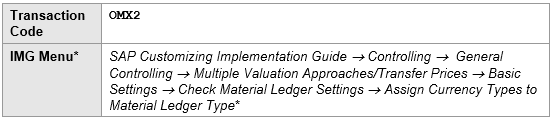

Senior Consultant’s Tip: For your initial S/4HANA activation, using Material Ledger Type “9000” with only “Company Code currency” (10) is a Best Practice for Lean Implementations. This setup minimizes complexity by generating only one view in the material master, which is often sufficient for mid-sized organizations or those not yet utilizing complex parallel valuation.
Select material ledger type “9000” and click on “Define individual characteristics”

Step 2: Assign Material Ledger Type to Valuation Area (T-Code: OMX3)
This step acts as the mapping phase, where you tell the SAP system which specific plants (valuation areas) will track material costs under the rules defined in Step 1.
In this configuration, assign Material Ledger type “9000” to your valuation areas (e.g., PA10, PA20, and PP10).
Important Warning: After this assignment, you will notice the valuation area status is Red. Do not be alarmed; this is the expected status. It will remain red until you complete the Production Start-up in Step 4.
Please follow the below path for this configuration.
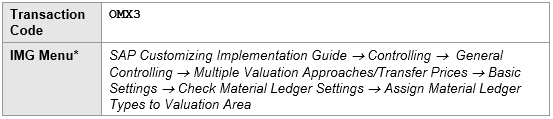
and assign our chosen material ledger type “9000” to all our valuation areas (PA10, PA20 & PP10)

Step 3: Activate Valuation Areas for Material Ledger (T-Code: OMX1)
Transaction OMX1 is the “On Switch” for the Material Ledger in your plants. Beyond just turning it on, this is where you define how the system determines material prices.
You must choose between two Price Determination levels:
1. Transaction-Based (2): Materials are valued at either moving average price (V) or standard price (S). Moving average price is calculated only for informational purposes.
2. Single/Multi-level (3): This is the prerequisite for Actual Costing. It calculates a periodic unit price for closed periods. Single-level rolls variances into ending inventory, while Multi-level rolls variances from lower-level components (Raw Materials) up to higher-level products (Finished Goods).
Strategic Directive: For your initial S/4HANA activation, I recommend Option 2 (Transaction-Based) to maintain a streamlined logistics profile. However, if your finance team requires the elimination of manual month-end variance allocations and needs true Actual Costing, Option 3 is the standard choice.
Please follow the below path for this configuration.
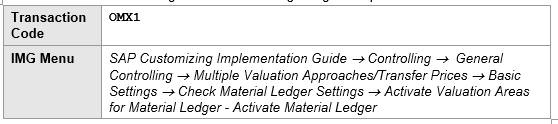
Select “ML Act.” check box and Price determination level as option 2 “Transaction-Based Price Determination”

Note
The value of price determination flows from this config to the material master as shown in the below screenshot.

Step 4: Production Start-up of Material Ledger (T-Code: CKMSTART)
This is the final execution step. Running CKMSTART converts your valuation areas into a productive state, allowing SAP to begin recording actual costs, multi-currency values, and parallel accounting.
Once you execute this for a specific plant (such as PA10), the system will trigger the “Plant is now productive” indicator. It is only at this point that the status in transaction OMX3 will finally turn from Red to Green.
Lets first activate this for our PA10 valuation Area (Plant)
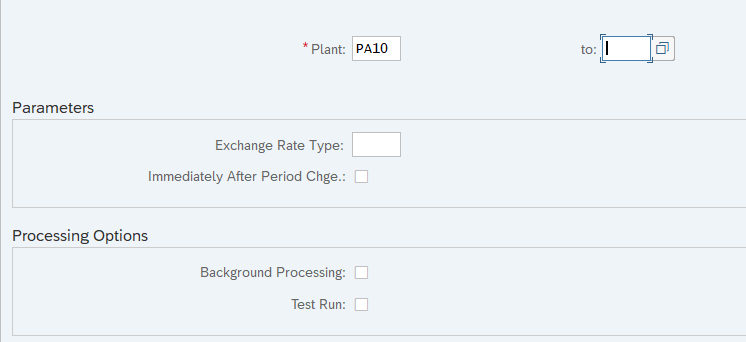
All green log informing PA10 is now productive with Material Ledger.
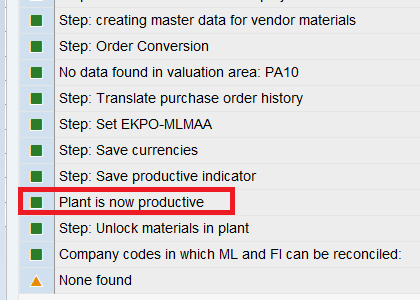
Valuation area PA20 & PP10 is made productive with ML through similar way
Step 5: Troubleshooting Common Activation Errors
Technical hurdles are common during ML activation. Here is how to resolve the most frequent errors encountered in the field:
Error 1 -Company Code is not set up for Material Management (M3152)
When we tried PP10 to make productive with ML, below error message is encountered

To resolve this error , We need to set-up Company code PP10 for Material Management through T-code OMSY

Now PP10 is initiated for MM periods from the current month .
Please note we need to open posting period starting of every month through MMPV. This step was already done for PA10 company code hence no error for Plants PA10 & PA20
Now re-try to make PP10 plant productive with ML
PP10 plant is Successfully productive now
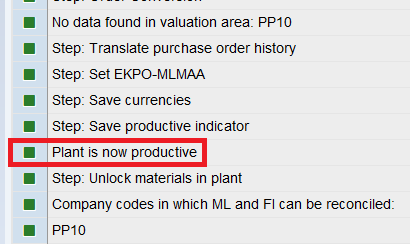
Error 2 -Material Ledger Currencies were changed (C+039)
How to resolve error C+039 ‘Material ledger currencies were changed’
To resolve this error run the transaction code CKM9 and check Company Code/Controlling area currency as per screenshot given below
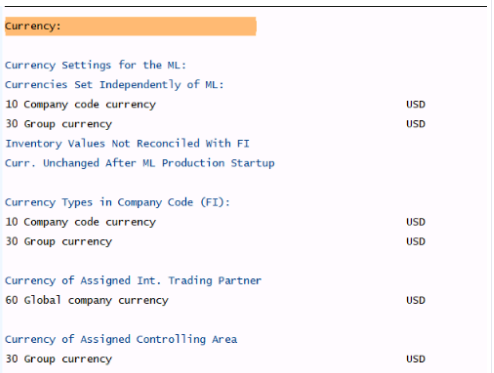
This currency should be aligned with the currency in SCC4
Note : For Example
Company Code Currency : USD
Currency in SCC4 : EUR
in this case in OKKP, select group currency 30 and currency as EUR
Please note that these currencies selection should not be changed after ML activation (CKMSTART). If changed then Error Material Ledger Currencies were changed (C+039) will come. if this happens then revert to the original currencies selection after deactivation of ML>
Error 3- ML Active checkbox is not selected in Material Master Accounting View.
- To resolve this first deactivate the ML through running report SAPRCKMJX in SE38
- Now go to OMS2, select your material type and click on “Quantity/value updating”
- Now select the “Quantity updating” & “value updating” check box for your valuation area (plant) & save.
- Now Set the Plant production for ML again through t-code CKMSTART
- Check in MM03- ML active checkbox should be now selected.
Error 4- ML currencies are not integrated in FI for valuation area (Error FML_CUST033)
To resolve the error we will follow 3-Part Remedial Sequence
Phase 1 (Controlling Area Setup):
To resolve this error, Configure the controlling area as given below for our Co-Area PPIN and linked it to Company codes. Please note that currencies should be aligned for material ledger & Controlling area
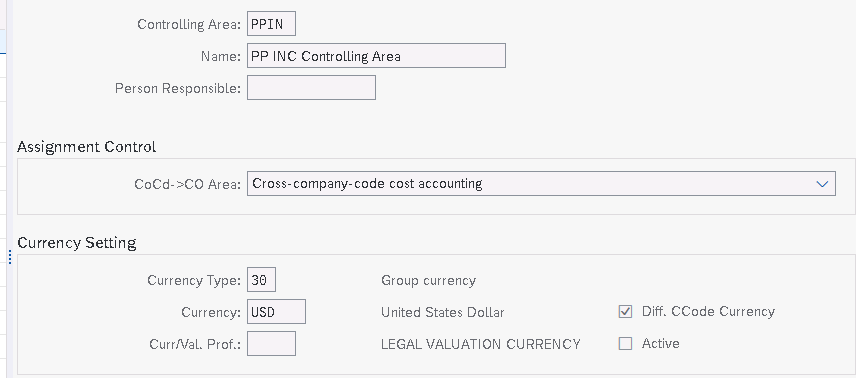
Phase 2 (Component Activation)
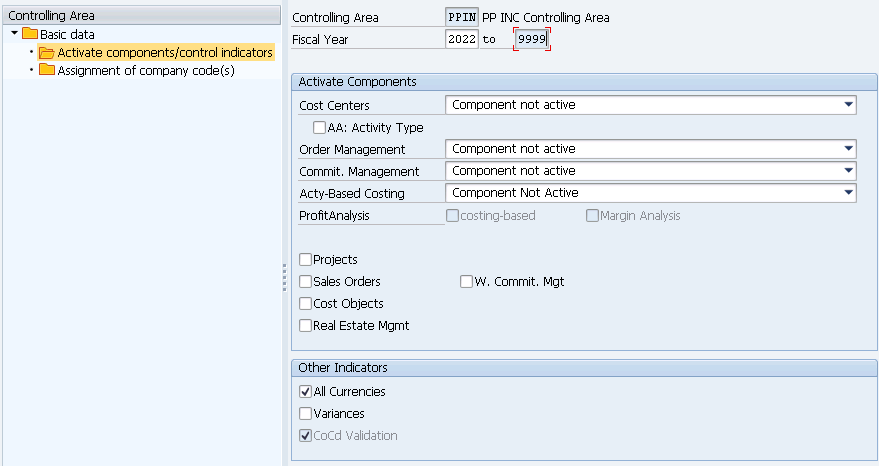
In SPRO (Maintain Controlling Area), ensure “CCtr Std. Hierarchy” is created. Set all components to “Not Active” to maintain a lean logistics scenario.
SPRO –> Controlling –> General Controlling –> Organization –> Maintain Controlling Area
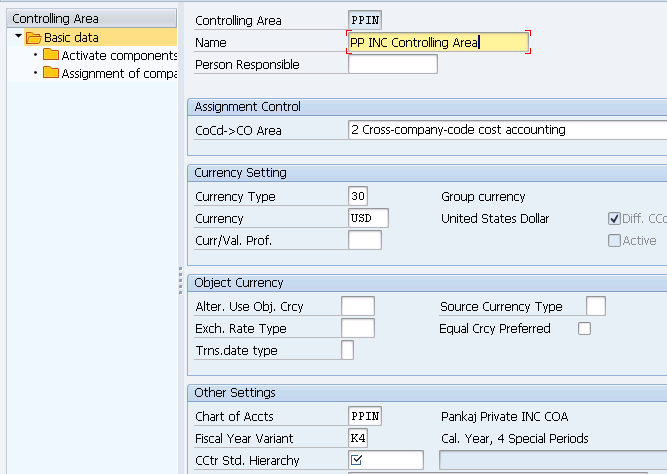
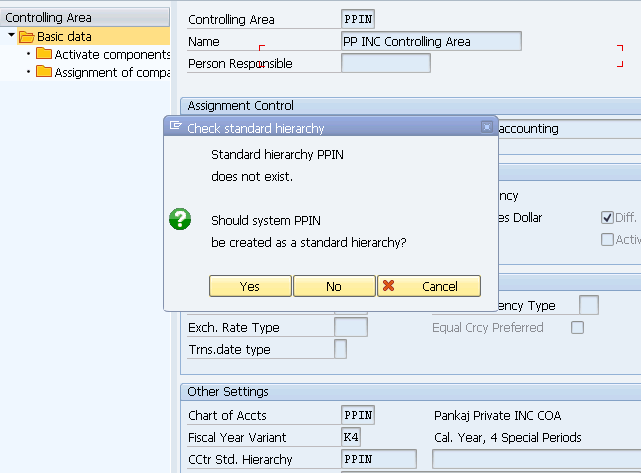
“CCtr Std.Hierarchy” is mandatory. Just give name as “PPIN” and save.
System will prompt for creation of “PPIN” “CCtr Std.Hierarchy”. Click on “yes”
Click on “Activate components/control indicators”

Since our focus is not on controlling right now so choose all components as not active to have minimum restrictions/work in our logistics scenarios.
We have already assigned our company codes “PA10” & “PA20” to our controlling area “PPIN”
Now run the CKMSTART again for our valuation area and Error FML_CUST033 -ML currencies are not integrated in FI for valuation area should not come.
if you are still getting this error then we need to configure the company code currency
Phase 3 (Ledger Integration)
Use transaction SB22 to check for the presence of your company code. If missing, navigate to FINSC_LEDGER, select Ledger “0L,” and ensure the company code settings are fully maintained.
Check the presence of your company code in transaction SB22
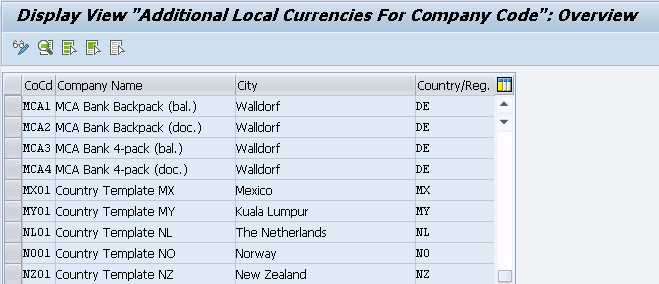
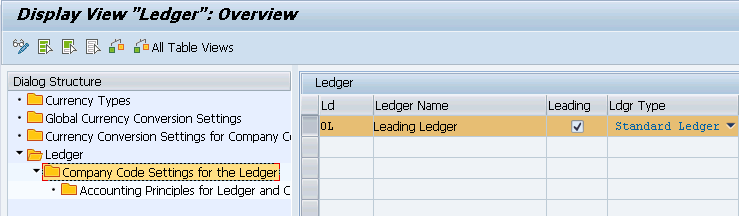
If your company code is not present then run T-code “FINSC_LEDGER”
Select line with ledger “0L” and click on “Company code Settings for the Ledger”
Insert your company codes
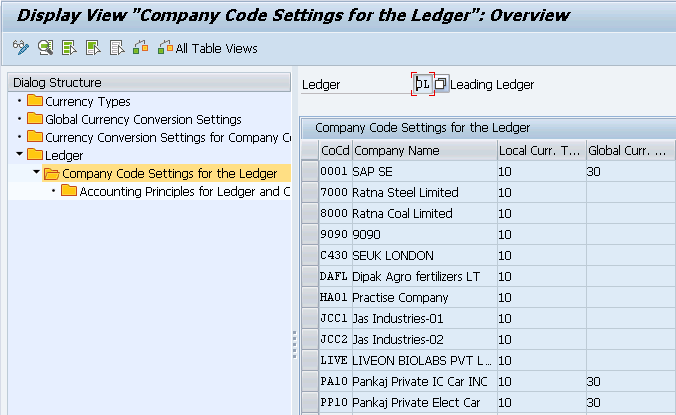
Now this error will be 100% resolved.
Error 5- Error C+380 with CKMSTART
The error message C+380 happens if the plant has an inconsistent entry in table T001W.
Cause: Inconsistency in plant/valuation area assignment.
Resolution: Use T-Code OX18 to delete the plant-to-company code assignment, save, and then re-assign the plant.
Expert FAQ: High-Value Technical Queries
Yes. In SAP S/4HANA Finance, the Material Ledger is the mandatory engine for all material valuations. You cannot perform inventory management without it.
Transaction-based (Option 2) values materials at standard or moving average prices for day-to-day operations. Multi-level (Option 3) is used for Actual Costing, which calculates the Periodic Unit Price by rolling variances from raw materials to finished goods at month-end.
This error occurs when Step 4 has not been completed. You must run transaction CKMSTART for the valuation area to set the productive indicator and move the status from Red to Green.
Video Tutorial
To get the most value from this topic, we recommend reading this full blog post along with watching the embedded YouTube video below.
The post provides structured insights and practical examples, while the video offers a visual walkthrough to reinforce key concepts. Together, they deliver a complete learning experience for SAP professionals.
Conclusion
Transitioning your valuation areas from Red to Green is more than just a configuration checkbox—it is a significant milestone for inventory transparency and financial accuracy. By following these five steps, you ensure that your S/4HANA system is architected for multi-currency reporting and advanced valuation requirements.
Are you ready to move beyond basic activation? Now that your Material Ledger is active, you can leverage Actual Costing for deep profitability analysis. To eliminate manual entry errors and speed up your deployment, I highly recommend using the Configuration Accelerator Workbooks for Efficiency
Note
Check Post FI Organization Structure in 5 Minutes to familiarize yourself with S4 HANA FI Organization Structure
Check Post SD Organization Structure in 5 Minutes to familiarize yourself with S4 HANA SD Organization Structure
Check Post MM Organization Structure in 5 Minutes to familiarize yourself with S4 HANA MM Organization Structure
The prerequisites to Material Ledger activation are successful configuration of minimum required FI, SD & MM organization structure. Click on the above link to read in detail.
We have completed Minimum Required organization Structure & activated Material Ledger (Mandatory for S4 HANA). Now we can configure and create our first material. Click on the above link for more detail.
Image Courtesy : Education vector created by freepik – www.freepik.com
The post Master SAP S/4HANA: 5 Essential Steps to Activate Material Ledger and Boost Financial Accuracy appeared first on Ultimate SAP Guides | S4 HANA Logistics Modules.
