Reading view

There are new articles available, click to refresh the page.
✇Ultimate SAP MM Guides by SAP Logistics Expert

SAP S/4HANA Material Ledger: Features, Benefits, and Real Business Scenarios

Home » MM

In today’s competitive business environment, organizations need real-time cost transparency, accurate inventory valuation, and streamlined financial reporting to stay ahead. This is exactly where the SAP S/4HANA Material Ledger comes into play.

As a powerful tool for multi-currency valuation, profit analysis, and integrated accounting, it helps businesses gain deeper insights into their production and sales costs while ensuring compliance with global standards.

In this post, we’ll explore the key features, major benefits, and real-world business scenarios of SAP S/4HANA Material Ledger in simple, easy-to-understand language so that both finance professionals and business leaders can maximize its potential.

Note:

To get the most value from this topic, we recommend reading this full blog post and watching the embedded YouTube video below.

The post provides structured insights and practical examples, while the video offers a visual walkthrough to reinforce key concepts. Together, they deliver a complete learning experience for SAP professionals

Video: SAP S4HANA Material Ledger Features, Benefits, and Real Business Scenarios

1) Why Material Ledger Activation is mandatory in S4 HANA.

In today’s complex global business landscape, companies frequently operate across multiple countries—each governed by its own financial, tax, and legal regulations. As a result, organizations must manage parallel valuations, where the same material or inventory must be valued differently based on varying accounting principles, such as International Financial Reporting Standards (IFRS) and Local GAAP. For example, a business may use standard price valuation for IFRS while applying moving average valuation for local compliance—all for the same material.

Moreover, multi-currency valuation becomes equally essential when transactions occur in one currency, reports are generated in another, and statutory accounting is required in a third. A global enterprise might procure materials in USD, manage operations in EUR, and report in the local currency of its subsidiaries. This complexity requires a robust solution to handle real-time, accurate, and compliant multi-currency valuations.

Parallel Valuation, Multi-Currency, and Material Ledger Are Essential in today’s Global Business Operations.

The Material Ledger is the basis of actual costing. It enables material inventories to be valuated in multiple currencies and allows the use of different Valuation approaches.

Let’s understand this in simple terms.

2) How to Understand Material Ledger in SAP S/4HANA.

To understand the material ledger , we need to understand the Sub-Ledger, General Ledger (GL), Trial Balance & Balance sheet.

2.1) What is Sub-Ledger

To understand the material ledger, we need to first understand the Sub-Ledger.

--> In order to understand Sub-Ledger, we need to first Understand the Basics of SAP Financial Accounting: General Ledger, Trial Balance & Balance Sheet.

2.1.1) General Ledger (GL)

In simple terms, the General Ledger (GL) is the main financial record of a company. It keeps track of all money coming in and going out, recorded as debits and credits. This is the backbone of any company’s financial accounting system in SAP S/4HANA.

2.1.2) Trial Balance

To make sure everything adds up correctly, companies use something called a Trial Balance—which is just a report showing the closing balances of all General Ledger accounts on a specific date. If the totals match, it confirms that the books are accurate.

2.1.3) Balance Sheet

The Balance Sheet then uses this data to show the financial health of the business at that point in time—listing what the company owns (assets) and owes (liabilities).

2.2) Concept of Sub-Ledger

Once you understand these core financial concepts, the next step is to explore the Sub-Ledger, which sits just below the General Ledger.

Sub-ledgers track detailed transactions for specific areas like customers, vendors, or assets. These transactions are posted either directly or through automated journal entries from integrated modules like SAP FICO, MM, or SD.

Material Ledger/Actual Costing is a Sub-Ledger like AP, AR, Fixed Assets

Picture: Material Ledger is a Sub-Ledger

3) Functionality of Material Ledger

Below are the main functionalities of material ledger.

  • Inventory Valuation/revaluation
  • Visibility of Price changes
  • Updating Standard Cost with Actual Prices (optional)
  • Periodic Unit price.
--> In simple terms, the Material Ledger in SAP S/4HANA is a tool that records all transactions related to materials—whether it's purchasing, receiving goods, price changes, or consumption during production. 

--> Material Ledger keeps track of how much materials cost and how they are used, while also supporting multiple currencies and different valuation methods (like standard price or actual cost).

3.1) Actual Costing

Actual costings means inventories are valued at Actual Cost based on the Actual Costing Runs.

Here inventories are valuated at actual cost means Materials are valued at Standard Price which is then adjusted to reflect the difference between the preliminary price and cost.

In Material Master accounting tab, the value of the field “Price determination” determines the actual costing.

Picture: Price Determination in Material Master

Since our material is having price determination as 2 (Transaction based) as shown in the above screenshot, the price difference gets posted to FI and will not participate in inventory valuation at actual cost.

--> Looking at the material as shown in the above screenshot, for our car business Material Ledger is active but actual costing is inactive 

Picture: Material Ledger Functionalities & their usage for our car business

3.2) Multiple Currencies & Valuations

The Material Ledger is a powerful functionality in SAP S/4HANA that enables parallel valuation of inventory in multiple currencies and accounting principles.

--> Material Ledger allows businesses to record, manage, and report material movements and inventory values across different valuation views (legal, group, and profit center)

--> Material Ledger supports up to three currencies for each material document.

For example : In the below screenshot a material is shown to have price in three currencies

Picture: Material Price in three currencies due to Material Ledger Activation

If a transaction is posted in CNY, we can see the FI document in all the three currencies.

In the below picture, it is shown how Material Ledger makes possible multiple currencies along with multiple valuations.

Picture: Multiple Currencies along with Multiple Valuations

With Material Ledger, organizations gain real-time visibility into inventory costs, currency fluctuations, and financial impacts—ensuring transparent and compliant financial reporting across all jurisdictions.

In the below section, we present real-world business scenarios that illustrate the practical relevance of the three valuation views available in the SAP S/4HANA material master.

These views—legal, group, and profit center—enable organizations to assess material values from different financial perspectives. The Material Ledger supports up to three currencies per material document to ensure accurate valuation across multiple reporting requirements, such as local statutory compliance, group-level consolidation, and internal profitability analysis.

This multi-currency capability helps businesses maintain financial transparency and consistency across global operations

4) Real Business Scenarios

Imagine we have a multinational business which operates in Canada, Singapore & USA. This business has a company & Plant each in Singapore & America and Headquarters in Canada.

  • This business sends semifinished materials from Singapore company to USA company on an intercompany price which include a small profit margin for SG company. USA company does further operation and sells the finish materials to the customers in USA.

4.1) Business Scenario 1 – Legal Valuation

This scenario involves legal reporting. Company A sells to company B in selling price of 120 Singapore Dollar with Company A cost of 100 Singapore Dollar. It means Company A profit is 20 Singapore Dollar.  So business wish – while doing legal reporting in each country, system should automatically prepare the report as per the local country rules & regulation and as per the local currency. In the above example – while reporting this transaction in the USA legal reporting, system should report inventory cost in USA company as equivalent of 120 Singapore Dollar converting into US Dollar.

Statutory reporting in local currency. Required for tax and legal
compliance.

Picture: Legal Valuation in a Transaction

4.2) Business Scenario 2 – Group Valuation

When semi-finished goods are sent from SG to US the transaction is booked in Singapore company in the currency Singapore Dollar and simultaneously the inventory received in the US plant (including profit margin of SG company in currency SINGAPORE DOLLAR) should be converted from the Singapore Dollar to the US DOLLAR and then booked in the currency US DOLLAR.

This business has below wish

  • Group valuation should be prepared automatically as per rules & regulations. For example -While doing the group valuation, the internal profit margin of 20 Singapore Dollar should be eliminated. This is to ensure that the group’s consolidated financials reflect only external profits.
  • Since group headquarters is in Canada, so while doing group reporting, company is using currency CANADIAN DOLLAR. So, it is a natural wish that all the transactions happening in the different countries/between the different countries, should be converted to CANADIAN DOLLAR on a predefined mutually agreed currency conversion base.

Consolidated reporting across company codes. Eliminates internal
profits to ensures that the group’s consolidated financials reflect only external profits

Picture: Group Valuation in a Transaction

4.3) Business Scenario 3 – Profit Center Valuation

This scenario involves profit centre accountings in the respective company. Company A sells to company B at a negotiated selling price of 110 Singapore Dollar with Company A cost of 100 Singapore Dollar. It means Company A Manufacturing Profit Centre books profit of 10 Singapore Dollar.

Similarly, Company “B” Sales profit center books profit of Sales Price (in US DOLLAR) to customer minus US DOLLAR equivalent of 110 SINGAPORE DOLLAR.

Internal transfer pricing and profitability analysis between business
units.

Material Ledger makes it possible with simultaneously posting of all the transactions into different currencies relevant for each valuation.

Now that you have a solid understanding of SAP S/4HANA Material Ledger—its key features, benefits, and practical business scenarios—it’s time to move forward with activation. In the next post, we will guide you through the minimal configuration required to enable Material Ledger in your S/4HANA system. Refer to the post below for a clear, step-by-step activation process in just five easy stages, along with common errors and their root causes to help you avoid potential pitfalls.

How to activate Material Ledger in S4HANA in 5 Easy Steps

The post SAP S/4HANA Material Ledger: Features, Benefits, and Real Business Scenarios appeared first on Ultimate SAP Guides | S4 HANA Logistics Modules.
✇Ultimate SAP MM Guides by SAP Logistics Expert

The Ultimate Guide to Master SAP MM-FI Integration

Home » MM

SAP MM deals with the procurement of material & services.

Mastering MM-FI integration is crucial in SAP financial control. Mastering MM-FI integration helps to ensure that financial statements accurately reflect the true cost of materials and inventory.

With this Ultimate Guide to Master SAP MM-FI Integration, we will help businesses to make informed decisions about procurement, production, and overall financial health.

Note: This post is solely for automatic determination of GL in MM (OBYC). To check the configuration of SAP MM-FI integration other than the OBYC, please see the below post

Ultimate guide to configure S4 HANA MM-FI Integration

--> When we procure material or services, we need to pay to the supplier of material or services. 

--> to pay to supplier correctly & timely it is very crucial to record the amount to be paid correctly & on time.


--> In simple terms, MM-FI Integration orchestrates the posting of values in tandem with different quantity movements.

SAP MM FI integration does this crucial work of keeping the correct & on time record of amount to be paid to the suppliers.

1. How MM-FI Integration Works

MM FI integration keeps records of values on the GL (General Ledgers)

Before we go into the detail , we need to first examine what are the expectations from the SAP MM FI integration in order to pay suppliers correctly & on-time.

1.1 Expectations & Solutions from MM-FI integration

Below are the typical characteristics of the business which should be taken care by MM FI integration.

1.1.1 Keep Record as Material Moves

in an organization, material moves due to several reasons. For example-

  • Receipt of the material from external vendor
  • Receipt of the material from production
  • Issue of the material for production
  • Scrapping of the materials

MM FI integration should capture this movement & record the values on GLs in real time as soon as material moves.

Below are the Elements used by SAP to fulfill this requirements

a) Movement Type

A movement type is a three digit/character identification key for a
goods movement. for example – 101 for Goods receipt, 201 for goods issue against cost center , 261 is goods issue against order etc.

b) Value String

Value string is assigned to each relevant movement type in inventory management. Value strings contain keys for relevant posting transaction such as BSX, WRX etc. For Example – movement type 101 contains the value string WE01

c) Transaction/Event keys

Transaction event key is to determine different GL for different business transactions. For example- BSX is used fort stock posting & BSV for change in stock value.

1.1.2 Keep Record for Materials having Different business Characteristics

Organizations has different type of materials like -Raw materials which are used as input for production process.

Semifinished materials might be produced in a production process which can be further consumed to produce final finishes product

MM FI integration should record the values on GLs according to the characteristics of the materials. For example – values for the Raw materials should be captured on the different GL account compare to the semi finished materials for the goods receipt against production order.

or value of the scrapping of the raw material should be captured on different GL account compare to the scrapping of the finished material.

Below are the Elements used by SAP to fulfill this requirements

a) Valuation Class

Valuation class if like further extension of material types.

For example – Material Type – RAW can have two valuation classes as 3100 – Raw material Domestic & 3110 Raw material Imported.

b) Account Modifier / Account Grouping Code

Account Modifier or Account Grouping Code is a three-character code used to differentiate the offsetting accounts

For example- Event is goods issue . But this goods issue can be for goods issue to a production order or for a scrapping etc.

So Account modifier or account grouping code is used for different scenarios like goods issue, scrapping, physical inventory to assign different accounts (for example, consumption account, scrapping etc.)

Another example

Business wants to post price differences to difference accounts in case of goods receipts for purchase orders compare to goods receipts for production orders.

--> Account grouping is used only for offsetting entries, consignment liabilities, and price differences.

1.1.3 Post Values as per the Org Structure

The two main organization structure elements in FI & MM are Company code & Plant.

Below elements are used by FI MM integration to post correct values here.

a) Valuation Area

Materials are valuated at plant level or at company code level.

  • If valuation is at plant level, then valuation area is plant.
  • If valuation is at company code level, then valuation area is company code.

Hint : Generally Valuation area should be plant otherwise it will be difficult to control the costing of the product.

b) Valuation Area Grouping

Valuation grouping code is used to determine the GL code for more than one valuation areas similar or different.

Our Car business has three plants -PA10, PA20 & PP10 (Valuation Area is plant).

Though PA10 & PA20 plants belongs to different company code compare to PP10, but they use the same chart of account.

We want to post transactions for these plants to the same accounts so we will group these three valuation areas under a single valuation grouping code.

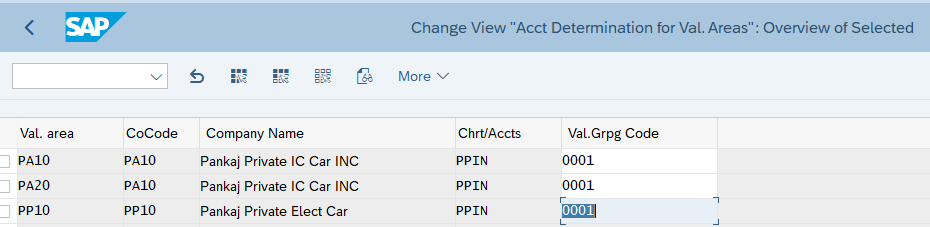
We will group together all our three valuation areas. We will group our valuation areas (plants) PA10, PA20 & PP10 to 0001

This will avoid to configure account determination separately for all plants as shown below

Below is the path to group the valuation areas

SPRO –> IMG –> Materials Management –> Valuation and Account Assignment –> Account Determination –> Account Determination Without Wizard –> Group Together Valuation Areas

Picture: Valuation Area Grouping

2. Configure SAP MM FI Integration

Now we are ready to configure the automatic account determination (SAP MM FI integration) by using the elements explained above

  • Material Movement
    • Movement Type
    • Value String
    • Transaction/Event keys
  • Different Material Type
    • Valuation Class
    • Account Modifier / Account Grouping Code
  • Organization Structure
    • Valuation Grouping Code

To configure start transaction “OBYC”

Please note that for each business scenario we will explain

  • Transaction/event keys associated with the business scenario.
  • Account Modifier/Account grouping code (if relevant).
  • GL used (click against each scenario to check the GL creation in detail).
  • We have already configured Valuation grouping code as “0001”. Please click HERE to see the details

3. MM FI Integration Configuration for Different Business Scenarios

Now we will configure FI-MM integration (Automatic account determination) for different business scenarios

3.1 Scenario 1 :Goods Receipt Against Standard Purchase Order

Below are the values of the five elements to configure the FI MM Integration (automatic account determination) for the different events which happens as a result of Goods receipt against purchase order.

3.1.1 Increase in Inventory Value

The first event is – inventory value is increased by the value of the goods purchased. Increase in Inventory Value is posted on the GL accounts through Key BSX. This increase is value is captured & post as shown below.

a) For Raw Material (ROH)

Since the inventory value is increasing so it will be a debit (Dr) transaction

  • Transaction Key – “BSX”
  • Valuation Class – “3000”
  • Account Modifier/Grouping Code – Not Applicable
  • Valuation Grouping Code – “PPIN”
  • Posting on General Ledger – “113100000” (PPIN-Inventory – Raw Material). Click HERE for detail.
b) For Trading Material (HAWA)

Since the inventory value is increasing so it will be a debit (Dr) transaction

  • Transaction Key – “BSX”
  • Valuation Class – “3100”
  • Account Modifier/Grouping Code – Not Applicable
  • Valuation Grouping Code – “PPIN”
  • Posting on General Ledger – “113600000” (PPIN-Inventory – Trading Goods). Click HERE for detail.
c) For Semi-Finished Material (HALB)

Since the inventory value is increasing so it will be a debit (Dr) transaction

  • Transaction Key – “BSX”
  • Valuation Class – “7900”
  • Account Modifier/Grouping Code – Not Applicable
  • Valuation Grouping Code – “PPIN”
  • Posting on General Ledger – “113300000” (PPIN-Inventory – Semi-Finished Goods). Click HERE for detail.
d) For Finished Material (FERT)

Since the inventory value is increasing so it will be a debit (Dr) transaction

  • Transaction Key – “BSX”
  • Valuation Class – “7920”
  • Account Modifier/Grouping Code – Not Applicable
  • Valuation Grouping Code – “PPIN”
  • Posting on General Ledger – “113400000” (PPIN-Inventory – Finished Goods). Click HERE for detail.
e) FI MM Integration Configuration for Increase in Inventory Value

Start OBYC and select Transaction as “BSX”.

Input Chart of Account as “PPIN”

Now configure as per the values given above

Picture : FI MM Integration Configuration for BSX

Since Valuation Modifier 0001 is a grouping of our all three plants (Valuation area PA10, PA20 & PP10) so this configuration is completed for all the three plants.

Note

Please click HERE to check the creation of GL account 113600000

3.1.2 GR/IR Posting

In accounting if there is a Positive (+ve) entry then there has to be a negative (-ve) entry to clear it in further transaction.

Here since increase in stock value was a +ve entry , so -ve entry will be on GR/IR account

3.1.2.1 FI MM Integration Configuration for GR/IR Postings.

WRX is the accounting key to post on GR/IR

WRX is maintained at client level . It means it is same GL for all valuation class, valuation grouping code etc.

  • Transaction Key – “WRX”
  • Valuation Class – Not Applicable (but we can use)
  • Account Modifier/Grouping Code – Not Applicable
  • Valuation Grouping Code – “PPIN”
  • Posting on General Ledger – “221120000” (PPIN-Goods receipt/Invoice Receipt). Click HERE for detail
Picture : FI MM Integration Configuration for WRX

3.1.3 Price Difference Posting

How Price difference is posted

  • For materials with price control indicator as ‘V’, while posting invoices, the difference will go to Price Difference A/c if the stock is not there.
  • For materials with price control indicator ‘S’, while making GR (either against Purchase Order or otherwise), the difference between the PO price and the standard price will go to Price Difference.
  • Production Order variances also gets posted to Price Difference A/c, with offset to COGM A/c.
--> We have created two Price variance (Difference) accounts

552041000 - PPIN-LOSS PRICE VARIANCE
552541000 - PPIN-GAIN PRICE VARIANCE
3.1.3.1 FI MM Integration Configuration for Price Difference.

For price difference we work with & without account modifier

Below are the rule for OBYC settings for PRD

  • Account modifier is not used for Goods & Invoice receipts against Purchase Orders
  • PRF for GR against Product Order & Order Settlement
  • PRA for Goods Issues
  • PRU for transfer postings.

Please see below the OBYC configuration screenshot for our car business

Picture: Price Difference Automatic Posting Configuration

3.1.4 Freight Posting

If we use delivery cost in the PO price schema then we need to post the fright charges to the relevant GL accounts.

System will search the GL account corresponding to the posting key which is used against freight condition type.

Here system is searching GL account for Key FR1 because in our pricing schema we have used key FR1 for condition “FRC1”. And in PO we have used condition “FRC1″for freight charges. Please check in detail HERE

Please check the pricing schema from the link to the post given below

Ultimate Guide to MM Pricing in 5 Easy Steps

3.1.4 FI MM Integration Configuration for Freight Charges.

We will use GL 221730000-PPIN-Freight Clearing Account (MM)

Please click HERE to check the creation of GL account 221730000 step by step

Picture : Configuration of FR1 Posting key

3.1.5 Scenario 1: Testing

Now we will test for the FI-MM integration configuration as done above for scenario 1

3.1.6 PO Price Detail

We have posted goods receipt for a PO of Finish Material number 12 (Finished Car Model D)

Below is the detail Price break up of the 10 EA in PO

Base Price (from Info Record) =99900 USD
Surcharge (Manually Entered) =9909 USD
--------------------
Net Value (Base for Taxes) = 109890 USD
---------------------
A/P Sales Tax 1 Inv. 6.000 % = 6593.40 USD
A/P Sales Tax 2 Inv. 3.000 % = 3296.70 USD
A/P Sales Tax 3 Inv. 1.000 % = 1098.90 USD
--------------------
Total Tax = 10989 USD
--------------------
Net Value (Including Taxes) = 120879 USD
--------------------
Freight (Manually Entered) = 1000 USD
_______________________________________________
Actual Price = 121879 USD
_______________________________________________

3.1.7 Posting on the GL in FI Document

After GR system has posted FI document as shown below

Picture: Various GL Postings in FI Document
3.1.7.1 Analysis of FI Document GL Postings
  • Amount posted on the inventory is exactly same as material value in material master due to standard valuation
  • The difference in the total value (minus freight) and material value is posted on the Price variance loss account as explained HERE
  • Freight amount is posted to a separate Freight clearing account as explained HERE

3.2 Scenario 2: Initial Stock Load

Below are the values of the five elements to configure the FI MM Integration (automatic account determination) for initial stock load.

3.2.1 Increase in Inventory Value

Due to stock load inventory value will be increased. This increase is value is captured through transaction key “BSX” & post same as shown above in goods receipt against purchase order.

Click HERE to go to the relevant section

3.2.2 Offsetting entry to increase in Inventory Value

GBB is the accounting key for “Offsetting entry for inventory posting”. Further as explained previously account modifiers are used to tell the system against which account the offsetting entry to inventory should be accounted. Some example are -VAX: for goods issues for sales orders, VBR: for internal goods issues (for example, for cost center), VNG: for scrapping/destruction etc.

a) For Raw Material (ROH)
  • Transaction Key – “GBB”
  • Valuation Class – “3000”
  • Account Modifier/Grouping Code – “BSA”
  • Valuation Grouping Code – “PPIN”
  • Posting on General Ledger – “339911000” (PPIN-Inventory – Initial Entry of Raw Material Balances). Click HERE for detail
b) For Trading goods (HAWA)
  • Transaction Key – “GBB”
  • Valuation Class – “3100”
  • Account Modifier/Grouping Code – “BSA”
  • Valuation Grouping Code – “PPIN”
  • Posting on General Ledger – “339912000” (PPIN-Inventory – Initial Entry SF & Finish Goods Balances). Click HERE for detail
c) For Raw Material (HALB)
  • Transaction Key – “GBB”
  • Valuation Class – “7900”
  • Account Modifier/Grouping Code – “BSA”
  • Valuation Grouping Code – “PPIN”
  • Posting on General Ledger – “339912000” (PPIN-Inventory – Initial Entry SF & Finish Goods Balances). Click HERE for detail
d) For Finished Material (FERT)
  • Transaction Key – “GBB”
  • Valuation Class – “7920”
  • Account Modifier/Grouping Code – “BSA”
  • Valuation Grouping Code – “PPIN”
  • Posting on General Ledger – “339912000” (PPIN-Inventory – Initial Entry SF & Finish Goods Balances). Click HERE for detail
e) FI MM Integration Configuration for Initial Stock Load

As usual start OBYC. Select the account key GBB

Picture: OBYC for initial inventory load…1

3.3 Scenario 3 :Goods Issue Against Sales Order

When goods are issues against sales order, inventory is decreased and offsetting entry is posted against COGS (Cost of goods sold)

3.3.1 Decrease in Inventory

Due to goods issue, inventory value will be decreased. This is captured through transaction key “BSX” & post same as shown above in goods receipt against purchase order. The only difference is now it is credit (-ve) against earlier debit (+ve) in goods receipt.

Click HERE to go to the relevant section

3.3.2 Offsetting entry to decrease in Inventory Value

GBB is the accounting key for “Offsetting entry for inventory posting”. Further as explained previously account modifiers are used to tell the system against which account the offsetting entry to inventory should be accounted.

Here account modifier will be VAX: for goods issues for sales orders.

a) For Raw Material (ROH)
  • Transaction Key – “GBB”
  • Valuation Class – “3000”
  • Account Modifier/Grouping Code – “VAX”
  • Valuation Grouping Code – “PPIN”
  • Posting on General Ledger – “550100000” (PPIN-Cost of Goods Sold Raw Material). Click HERE for detail
b) For Trading Material (HAWA)
  • Transaction Key – “GBB”
  • Valuation Class – “3100”
  • Account Modifier/Grouping Code – “VAX”
  • Valuation Grouping Code – “PPIN”
  • Posting on General Ledger – “550200000” (PPIN-Cost of Goods Sold Trading Material). Click HERE for detail
c) For Semi-Finished Material (HALB)
  • Transaction Key – “GBB”
  • Valuation Class – “7900”
  • Account Modifier/Grouping Code – “VAX”
  • Valuation Grouping Code – “PPIN”
  • Posting on General Ledger – “550300000” (PPIN-Cost of Goods Sold Semi-Finished Material). Click HERE for detail
d) For Finished Material (FERT)
  • Transaction Key – “GBB”
  • Valuation Class – “7920”
  • Account Modifier/Grouping Code – “VAX”
  • Valuation Grouping Code – “PPIN”
  • Posting on General Ledger – “550300000” (PPIN-Cost of Goods Sold Finished Material). Click HERE for detail
e) FI MM Integration Configuration for Sales Order Goods Issue

3.4 Scenario 4 :Transfer from Consignment Stock to Own

When we transfer the consignment stock, a financial document is generated and we are financially liable to pay the supplier for the goods.

To determine the GL accounts for this scenario we need to configure the OBYC for transaction key “KON”

Picture: Posting of “KON” Key

3.5 Scenario 5: Subcontracting Purchasing FI Integration

Subcontracting Process is a Special Procurement Process where a company outsources certain Manufacturing Processes to produce Sami fished or finished material to a Subcontracting Vendor.

Please check the below post for detail subcontracting process configuration & Testing

a) GBB+VBO

VBO is used to post GL for consumption of Stock material to vendor (543) – Receiving of material from subcontractor RM consumption

We have configured GL 551900000 (PPIN-Consumption – Subcontracting, w/o CE) for all the material types (Valuation Class 3000 for Raw Materials, 3100 for Trading goods, 7900 for Semifinished Goods & 7920 for Finished Goods

Configure GBB+VBO as per below

Picture: OBYC Configuration for GBB+VBO

b) BSV

This key is used to configure Change in stock account – Subcontracting

We have configured GL 550200000 (PPIN-Cost of Goods Sold (Trade w/o Cost Element)

Picture: OBYC Configuration for BSV

c) FRL

Accounting key FRL is used to post outside Processing Charges – subcontracting charges GL account

We have configured GL 665008500 (PPIN-Subcontracting Services)

Picture: Configuration of FRL key

3.6 Scenario 6 : Expense/Revenue from Material in Stock Transfer

we are transferring stock from one plant (PA10) to another (PA20). The material is valued at 1000 USD in PA10 while 1010 USD in plant PA20.

a) AUM

Material will be transfer with the valuation of sending plant . The difference in the price will be recorded in the separate account

We have configured as per below

  • GL 552011000 (PPIN-Loss Inventory Transfer (Raw & Trade) for loss in transfer of Valuation Class 3000 (Raw Materials) & 3100 (Trading Goods)
  • GL 552511000 (PPIN-Gain Inventory Transfer (Raw & Trade) for gain in transfer of Valuation Class 3000 for Raw Materials & 3100 (Trading Goods)
  • GL 552013000 (PPIN-Loss Inventory Transfer (SF & Finish Goods) for loss in transfer of Valuation Class 7900 (Semi-Finished) & 7920 (Finished Goods)
  • GL 552513000 (PPIN-Gain Inventory Transfer (SF & Finish Goods) for gain in transfer of Valuation Class 3000 (Raw Materials) & 3100 (Trading Goods)
Picture; OBYC Config for AUM Transaction Key

Image by pikisuperstar on Freepik

The post The Ultimate Guide to Master SAP MM-FI Integration appeared first on Ultimate SAP Guides | S4 HANA Logistics Modules.

✇Ultimate SAP MM Guides by SAP Logistics Expert

Master SAP SD Billing Configuration

In the competitive world of enterprise resource planning (ERP), mastering SAP SD Billing Configuration is crucial for a successful SAP consultant. SAP SD Billing Configuration not only streamlines billing operations and enhances accuracy but also ensures seamless integration with other SAP modules.

This guide will walk you through the essential features, best practices, and advanced techniques to help you harness the full potential of SAP SD Billing Configuration. Whether we are a seasoned SAP consultant or a new SAP consultant, this comprehensive overview will equip you with the knowledge to improve efficiency and drive success in your organization.

1. Important fields in Billing Type Configuration

Let’s have a look on all the important fields of billing type.

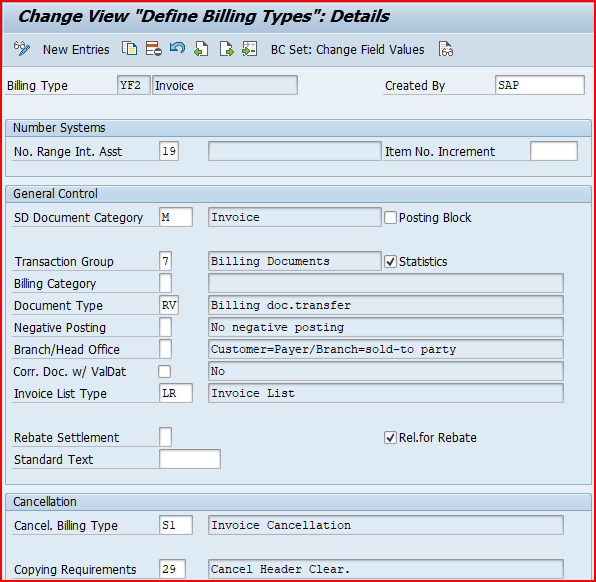
We have configured billing type YF2 for our car business.

Picture: Billing Type YF2 Configuration

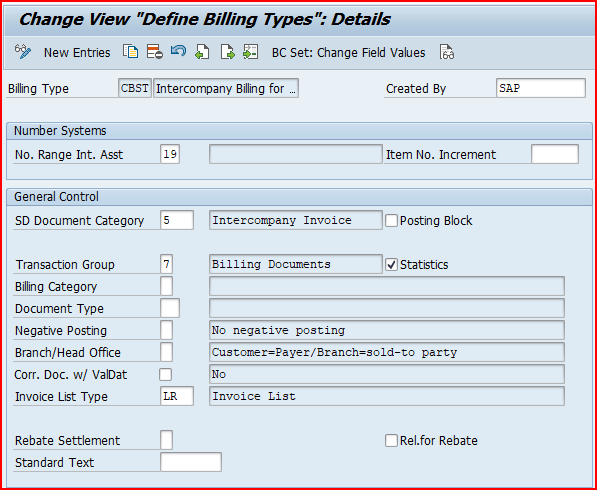
1.1 Fields in the “General Control” Section

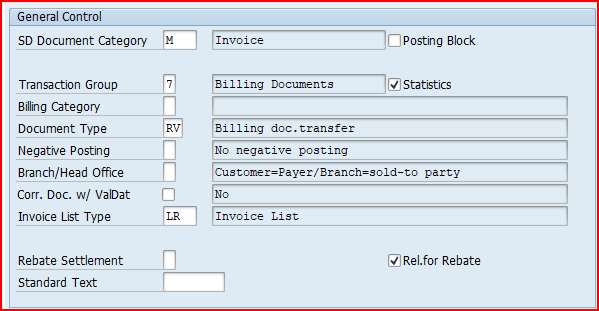
Picture: Configuration in Fields in the “General Control” Section
  • Transaction group : A group that allows you to control certain features of transaction flows by sales, shipping and billing documents.
  • Billing category : It is used to differentiate the billing documents.
  • Document type : This field classifies accounting documents. As invoice generates FI document type RV (Billing data transfer)
  • Negative posting : Negative posting for same period.
  • Branch/Head office: The indicator controls, which partner functions of the billing document, can be forwarded to financial accounting.
  • Credit memo with value date : If the field is set, the reference billing document is not settled and the payment deadline date for the base billing document comes after the billing date for the credit memo.
  • Invoice list : Classification that distinguishes between invoice list types that require different processing by the system.
  • Posting block: it blocks automatic transfer of the data from invoice to FI document. Invoice has to be released manually then.
  • Statistics: the value of the billing document is going to be updated in LIS. It indicates whether the system stores information from billing documents for the purposes of statistical analysis.
  • Rebate settlement : If indicates whether the billing type is used exclusively during rebate processing.
  • Relevant for Rebate: This indicator is one of the pre – requisite to process rebates.

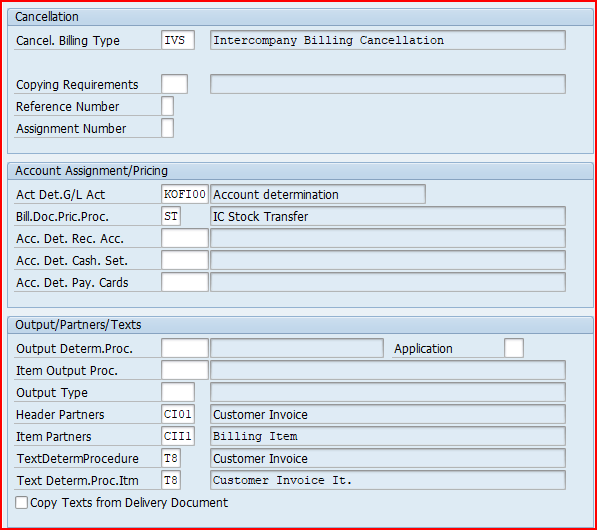
1.2 Fields in the “Cancellation” Section

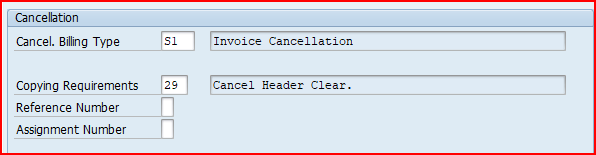
Picture: Fields in the “Cancellation” Section
  • Cancellation billing type : It specifies the default cancellation for this billing type.
  • Copying requirements : The routine checks that certain requirements are met when one document is copied into another.
  • Reference number : The reference number is a piece of additional information forwarded from SD and FI.
  • Allocation number : item that is forwarded from SD to FI. If you do not make an entry and the field is not filled in the order, the field remains empty.

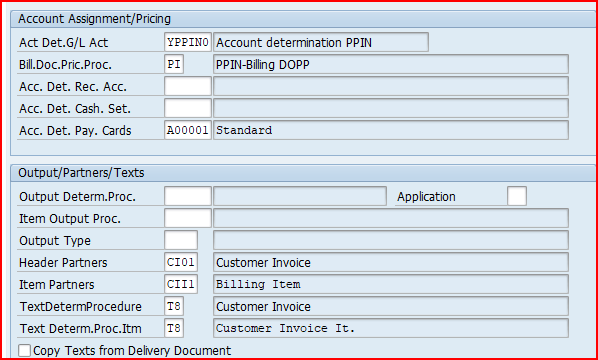
1.3 Fields in the “Account Assignment/Pricing” Section

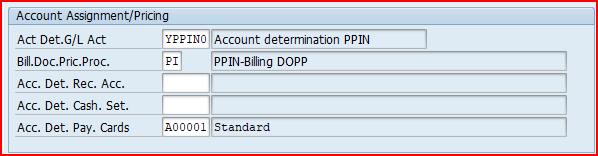
Picture: Fields in the “Account Assignment/Pricing” Section
  • Account determination procedure: It specifies the condition types that the system uses for a particular type of document (Ex: Invoice) to determine the G/L Accounts to which amounts should be posted.
  • Document pricing procedure : The key that specifies the pricing procedure for this type of sales document. The pricing procedure determines how the system carries out pricing for a particular sales document.
  • Account determination reconciliation account: If a G/L Account is determined here, then the reconciliation account stored in the customer master record is ignored.
  • Account determination cash settlement : It determines the condition types that the system uses to determine G/L Account for cash settlement. If this field is filled, then the billing document is not posted on the debit side. In this case the G/L Account determined is posted.
  • Account determination pay cards : It specifies the condition types that the system uses to determine general ledger accounts for document types used in payment card transactions.

We will configure our own billing type “YF2” as shown in the below screenshots.

Note

Once we have configured our own Account determination procedure. We will assign this to the billing type YF2

Please check below post to have a step by step overview of the Account determination procedure

SAP SD FI Integration and Account Determination

2. Billing Type Configuration

We define the billing type here for the different business scenarios.

We define the billing type first here and then it is inputted in sales order type.

2.1 Billing Type for Standard Sales Order

For standard order we use billing type as F2.

For our car business we have copied and configured our specific billing type as YF2

To configure billing type follow the below path

SPRO –> Sales and Distribution –> Billing –> Billing Documents –> Define Billing Types for Sales

Alternatively use transaction code VOFA

Configure billing type YF2 as shown in the below screenshot

Picture: Billing Type for PPIN Standard Order-1
Picture: Billing Type for PPIN Standard Order-2

Now to determine this billing type based on a delivery or order , we need to input this delivery type in the sales document type.

Please check the below post to see the assignment of delivery type YF2

Configure SAP S4 HANA Sales Documents in 10 Minutes – Assignment of Delivery Type & Billing Type to Sales order Type

2.2 Billing Type for Inter-Company STO

For inter-company STO with delivery & billing, we use reference sales document type as CBST as shown in the below heading HERE

Configure the billing type CBST as shown in the below screenshot

Picture: Configuration of Billing Type for Inter-Company STO -1
Picture: Configuration of Billing Type for Inter-Company STO –2

2.2.1 Reference sales Order type for Inter-company STO with Delivery & Billing

We use Reference sales Order type “CBST Ref.Order for IC STO” for Inter-company STO with Delivery & Billing

We assign billing type “CBST” to reference sales Order type “CBST” as given in the below screenshot.

Picture: Reference sales Order type for Inter-company STO with Delivery & Billing

3. Billing Copying Control

Here we Configure data copy from billable reference documents to billing documents.

There are three copying control scenarios related to the billing

  • Sales document to billing document
  • Delivery to billing document
  • Billing document to billing document

We will configure each scenario one by one

3.1 Copy Control from Delivery Document to Billing Document

We will set up copy control from delivery document to billing document. This is used in several scenarios like standard sales process & third party with individual PO process

Follow the below path for this

Picture: Config Path for Copy control from Delivery to Billing

3.1.1 Scenario 1 : Standard Sales Scenario

In the standard sales scenario we configure the copy control from std outbound delivery to standard billing

Here we make specifications for copying requirements, transferring data & quantity and value updates in document flow. We will do this for each copying pair at header and item level.

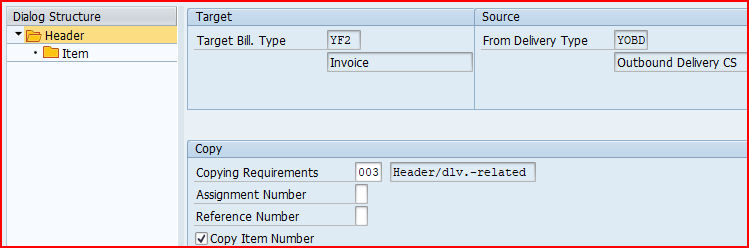
First we will copy Header Data

a) Header Data Copy

Our Delivery type is “YOBD” & billing type is “YF2”

Picture: Copy control from Delivery to Billing Header Data
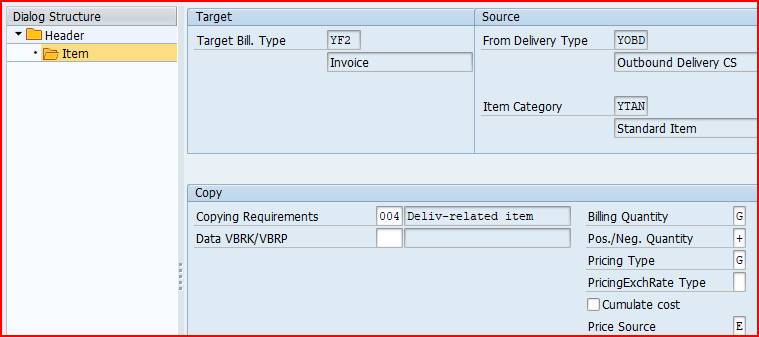
b) Item Data Copy

Click on Item and configure the copy control at item level

Picture: Copy control from Delivery to Billing Item Data
c) Characteristics of scenario 1 Copy Control

Below are the main Characteristics of the above configuration

  • Billing Quantity “G” means billing will be generated for Cumulative batch quantity minus invoiced quantity
  • Price Source “E” means Source is “Delivery/Order”

3.1.2 Scenario 2 : Third Party Sales with Individual PO

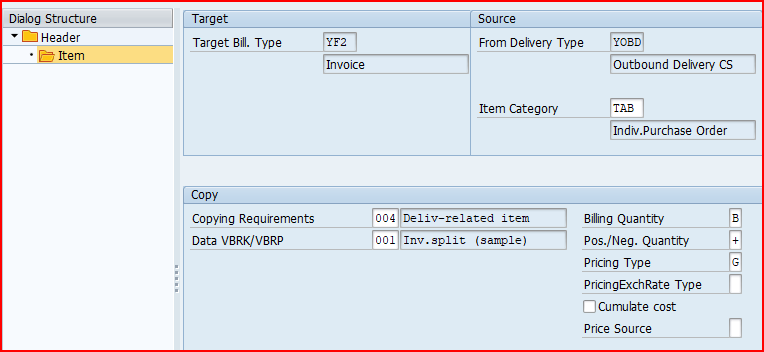
In the Third Party Sales with Individual PO scenario we maintain “A” for billing relevance in the corresponding item category “TAB”. we configure the copy control from std outbound delivery to standard billing.

Value “A” in the billing relevance field of sales order item category indicates that the billing document is created based on the delivery. Hence we need to configure copy control from delivery to the billing for Third Party Sales with Individual PO scenario

Please see the below post for Item Category “TAB” configuration

Mastering SAP Sales Item Categories: A Comprehensive Guide – Item Category for 3rd Party sales with individual PO “TAB

First we will copy Header Data

a) Header Data Copy

Our Delivery type is “YOBD” & billing type is “YF2”

Picture: Copy control from Delivery to Billing Header Data for 3rd Party with individual PO
b) Item Data Copy

Click on Item and configure the copy control at item level and configure for item category “TAB”

Picture: Copy control from Delivery to Billing Item Data for 3rd Party with individual PO
c) Characteristics of scenario 2 Copy Control

Below are the main Characteristics of the above configuration

  • Billing Quantity “B” means billing will be generated for Cumulative delivery quantity minus invoiced quantity

3.1.3 Scenario 3 : Inter-Company STO with Delivery & Billing

For scenario “Inter-Company STO with Delivery & Billing”, we use delivery type as “NLCC” & Billing type as “CBST”

We will first configure the copy control for Header & the item

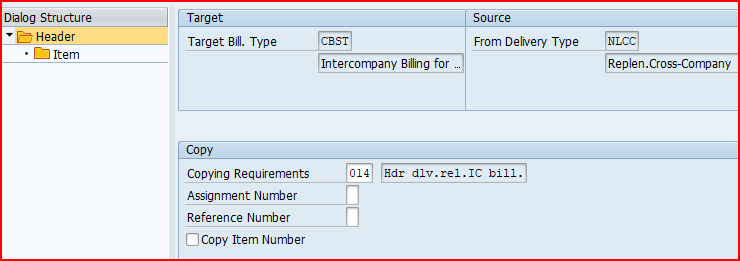
a) Header Data Copy

We will configure Header data copy from source document type “NLCC” to target Document type “CBST”

Picture: Header Data Copy for Header copy from NLCC to CBST
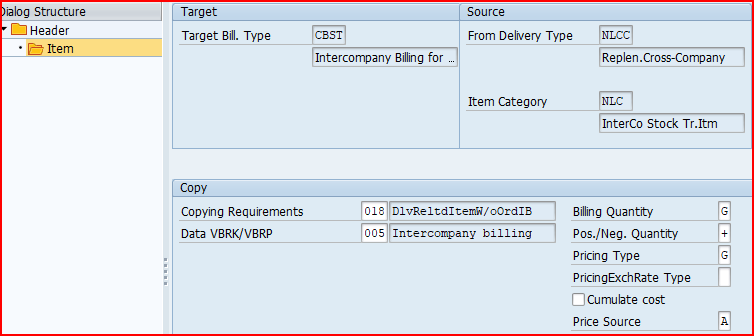
a) Item Data Copy

For scenario “Inter-Company STO with Delivery & Billing”, we use delivery type as “NLCC” with item category as “NLC”

So we will maintain the item data copy for Item category “NLC”

Picture: Item Data Copy from NLCC to CBST

Billing quantity “G” indicates – Cumulative batch quantity minus invoiced quantity.

Pricing type “G” indicates to copy price elements unchanged and redetermine taxes.

Price source is “A” – Purchase Order

3.2 Copy Control from Sales Document to Billing Document

We will configure copy control from the sales document to Billing document for the third party sales processing

In the third party Order processing , our business outsource the final product to a third party to sell it to customer.

Upon receiving third party order order from the customer, we passes it to the third party vendor who delivers the goods to the customer, and invoice to our business. Then we bills the customer for the goods supplied.

Once invoice receipt is entered, we can bill the customer.

--> Since an outbound delivery doesn’t exist for the third-party, the billing will be sales order based. In the item category configuration, the billing relevance indicator is set to "F". So the system allows invoicing the order only when vendor’s invoice has been processed in invoice verification.

Please check the detail step by step end to end third party process in the below post

The Ultimate Guide to SAP Third Party Sales

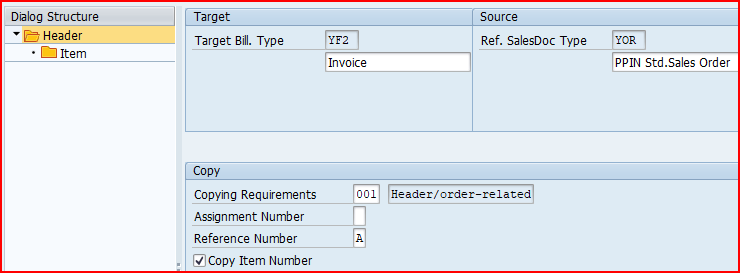
a) Header Data Copy

Our Sales Order type is “YOR” & Billing Type is “YF2”

Picture: Copy Control from Sales Document to Billing Document Header Data

b) Item Data Copy

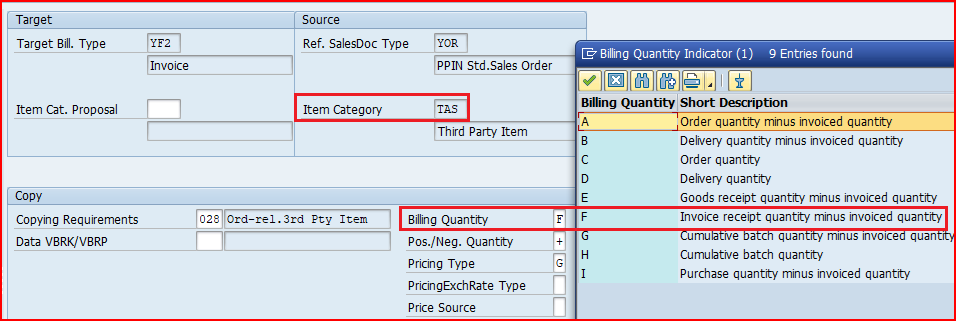
Click on Item and configure the copy control at item level

The Billing is created for the quantity specified in the vendor invoice. The setting in the copy control for the third-party item category (TAS) from sales document (YOR) to billing document (YF2) specifies that the quantity from the invoice receipt is transferred to the billing document instead of the order quantity (billing quantity indicator in copy control is F)

Picture: Copy Control from Sales Document to Billing Document Item data

Please see the below post for Item Category “TAS” configuration

Mastering SAP Sales Item Categories: A Comprehensive Guide – Item Category for 3rd Party sales “TAS

4. Posting of Billing Documents

We will now post billing documents for all the sales scenarios. Accounting document is generated as a result of the billing document posting

Billing can be posted to customer based on a sales order on based on a delivery depending upon the business scenario.

4.1 Billing for Standard Sales Scenario

In standard sales scenario, the process begins with creating a sales order based on a customer’s purchase order, followed by an availability check.

Once sales order is confirmed, a delivery document is generated, and the goods are picked, packed, and shipped, updating the inventory. Then we can create billing document to customer.

Note : Please visit the below post for details of sales order & delivery creation which is a prerequisite for billing document creation

An Ultimate guide to Sales Order in SAP S4 HANA SD – Standard Sales Order

As described in the delivery item copy control for standard scenario HERE, the billing would be generated for the order item (as no invoice is created till yet).

Start VF01 and input outbound delivery number

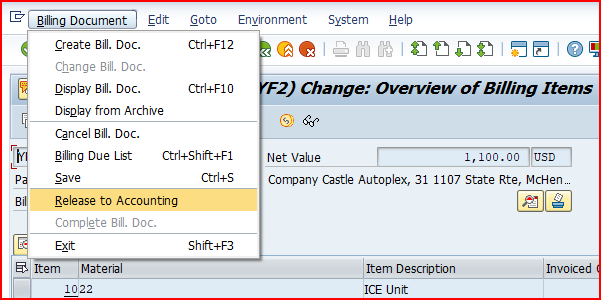
Save and click on “Release to Accounting”.

This will generate a accounting document as shown below

Picture: Accounting Document generated in Billing

Note: Please visit the below post for account assignment configuration (SD-FI Integration) details

SAP SD FI Integration and Account Determination

4.2 Billing for Third Party Sales Scenario

In the third party Order processing , business outsource the final product to a third party to sell it to customer.

4.2.1 Prerequisite for third party sales scenario billing creation

Below are the prerequisite for the billing creation for third party sales scenario

  • Sales Order to Customer created
  • PR & PO to vendor created.
  • GR can be created
  • Vendor invoice is posted

Now we can do the third party sales billing

Note : Please visit the below post for details of end to end third party sales process prerequisite for billing document creation

The Ultimate Guide to SAP Third Party Sales

Since for our third party item category, billing-relevance indicator F is activated billing refers to the goods receipt quantity instead of the incoming invoice quantity

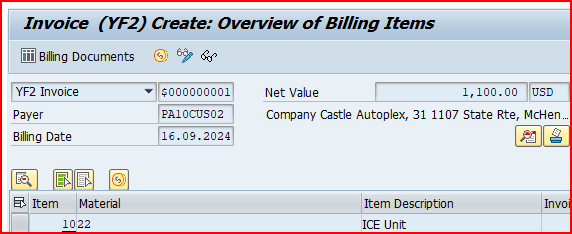
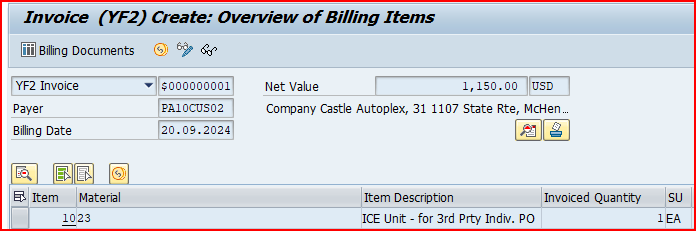
Start VF01 and input outbound delivery number

Picture: Billing Creation

Save and click on “Release to Accounting”.

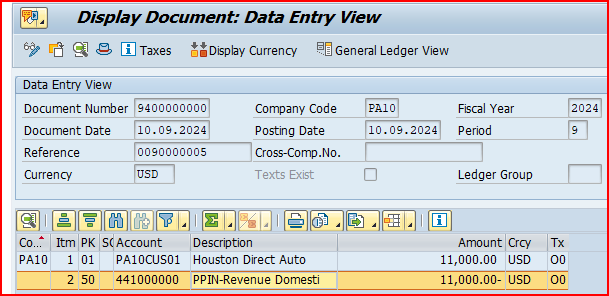
Picture: Accounting Document posting for Billing

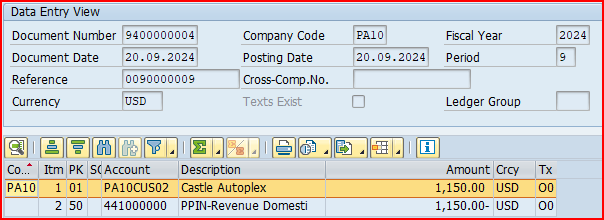
This will generate a accounting document as shown below

Picture: Accounting Document for Third party sales billing

4.3 Billing for Third Party Sales with Individual PO Scenario

In the third party Order processing , business outsource the final product to a third party to sell it to customer.

4.3.1 Prerequisite for Billing creation

Below are the prerequisite for the billing creation for Third Party Sales with Individual PO scenario.

  • Sales Order to Customer created
  • PR & PO to vendor created.
  • GR is created
  • Vendor invoice is posted
  • Outbound Delivery to Customer based on sales order is created and Pick, Pack & Goods issue is done.

Now we can do the third party sales with individual PO billing

Note : Please visit the below post for details of end to end third party sales process prerequisite for billing document creation

Third Party Sales with Individual Purchase Order

Start VF01 and input outbound delivery number

icture: Billing creation for 3rd Party Sales with Individual PO

Save and click on “Release to Accounting”.

This will generate a accounting document as shown below

Picture: Accounting Document for Third party Sales with Individual PO Billing

Image by vector4stock on Freepik

The post Master SAP SD Billing Configuration appeared first on Ultimate SAP Guides | S4 HANA Logistics Modules.

❌